- Docs
- Get started
Set up your computer

Install the connector with one line, run arcon pair, scan the code, confirm the computer's details on your phone, then connect Claude Code and Codex and watch sessions go live.
Show transcriptHide transcript
Arcon connects the computer where your agents run to your phone. Setup takes about five minutes.
Install the connector with one line, in the same place your agents run. On Windows, that’s usually WSL. Run arcon pair.
It shows a QR code and a six-character code. Scan it in the app, or type the code.
Your phone then shows which computer is asking: its name, its system, and where it’s connecting from. If it’s yours, name it and tap Pair.
If not, tap “This isn’t my computer”. A code works once, for ten minutes. The pairing is saved on your computer, readable only by you.
Then connect your agents: arcon install claude-code, arcon install codex, and arcon start. That’s it. Now start Claude Code the way you always do.
Within seconds, the session appears on your phone, named after your first request.
Open it to follow the current task, the checklist, sub-agents and live output. The chat is a two-way mirror.
What you type in the terminal shows up here, and your message reaches the agent at its next step. Pair once. Follow everywhere.
Where to install
Install Arcon in the same place your agents run. Claude Code and Codex report to the Arcon next to them, so if claude runs inside WSL, Arcon goes inside WSL too. Pick yours; every command on this page follows your choice.
Open your Ubuntu (WSL) terminal, the one where you type claude or codex. Everything below runs there. This is the most common setup on Windows.
Install the connector
One line downloads the latest Arcon, checks it, and puts the arcon command on your PATH. No sudo, and running it again later simply updates Arcon.
curl -fsSL https://arcon.dev/install.sh | shArcon connector installer · WSL
✔ Node.js 22.12.0 (/home/alex/.nvm/versions/node/v22.12.0/bin/node)
✔ Downloaded the connector
✔ Checksum verified
✔ Release signature verified
✔ Unpacked Arcon connector 0.12.0
✔ Installed in /home/alex/.arcon/app
✔ Wrote the launcher /home/alex/.local/bin/arcon
✔ arcon --version → 0.12.0
Arcon is installed.What it touches: ~/.arcon/app (the program), ~/.local/bin/arcon (the command) and, only if ~/.local/bin isn’t on your PATH yet, one line in your shell’s startup file. If it says so, open a new terminal. Then check:
arcon --version0.12.0Pair it with your phone
Pairing links this computer to your account. You need the Arcon app on your phone, signed in (Set up your phone). Nothing is paired until you confirm it on the phone.
Run arcon pair
arcon pairPair this machine with the Arcon app [ a QR code appears here ] Open Arcon on your phone → Connectors → Pair and scan the QR code, or type the code: K 7 X 4 M 2 Code expires 14:32:05. Waiting…It shows a QR code and a 6-character code, then waits. Leave it running.
Scan the code with your phone
On the Pair your connector screen (or More → Computers → +), point the camera at the terminal. Can’t scan? Type the six characters under Or enter the code and tap Pair this computer.
Codes are only taken from your own screen: if a link tries to fill one in, the app warns you and asks you to scan or type it instead.
Check the computer’s details, then tap Pair
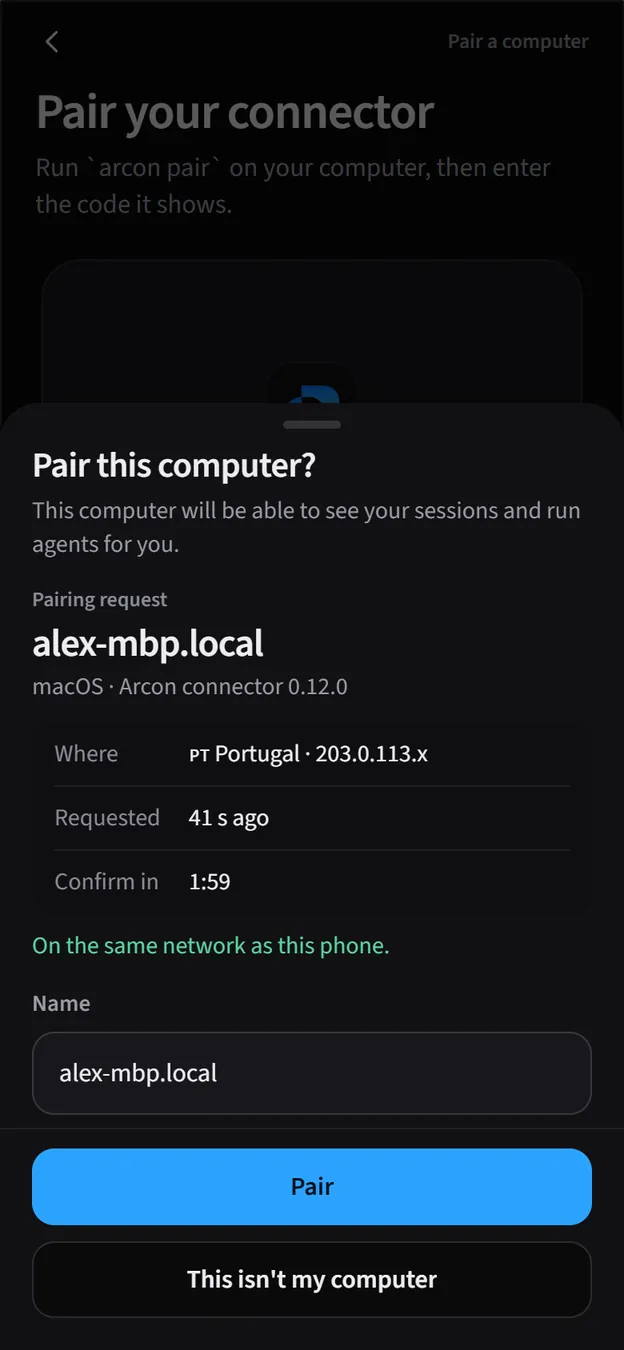
The phone asks Pair this computer? and shows who is asking: the computer’s name, its system and connector version, roughly where the request came from, how long ago, and how long you have to confirm. It also says whether the computer is On the same network as this phone.
If it’s yours, give it a name (for example “Work laptop”; it appears on every session card) and tap Pair. If you don’t recognise it, tap This isn’t my computer: the terminal then says
Pairing was declined on the phone.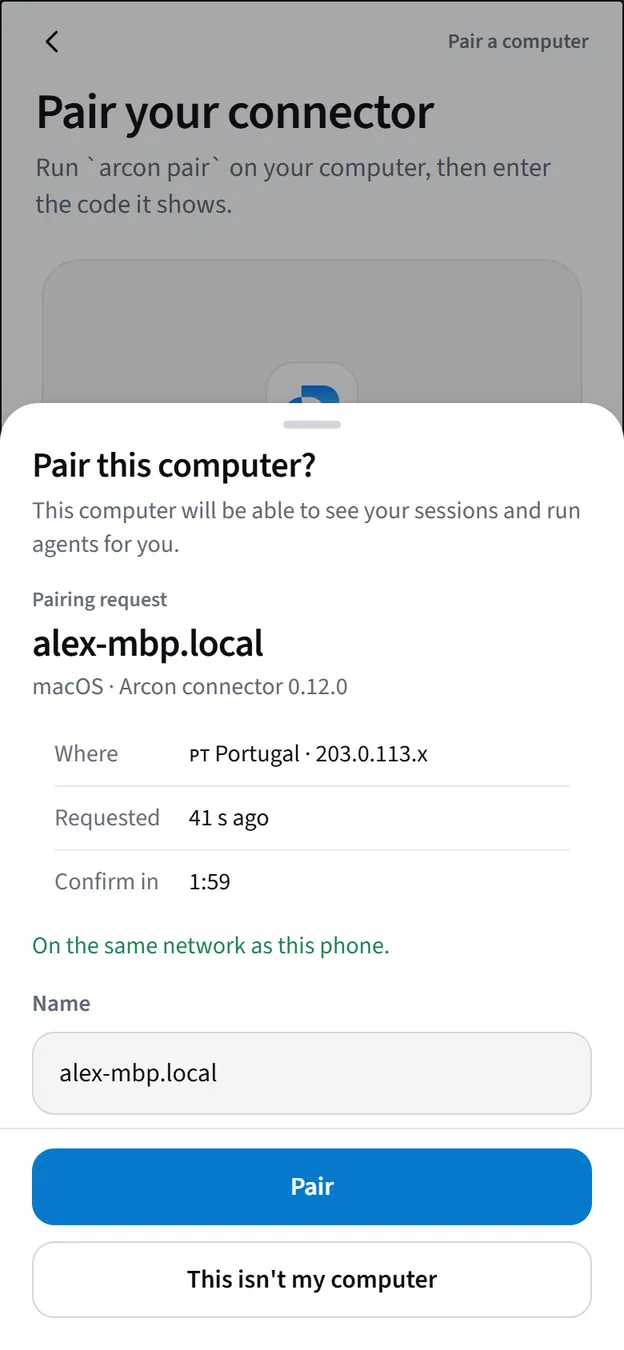
See “Paired!”
Confirm on your phone… (check that it shows this computer's name) ✔ Paired!Next: arcon install claude-code (hooks) and arcon start (daemon).The pairing is saved in
~/.arcon/credentials.json, readable only by you.
Connect Claude Code
arcon install claude-codeThis adds Arcon’s hooks to ~/.claude/settings.json (your own settings and hooks are kept, and a timestamped backup is saved), and installs the Arcon skill. Running it twice changes nothing.
Connect Codex
arcon install codexThis does two things. It adds Arcon’s hooks to ~/.codex/hooks.json, so Codex’s permission requests reach your phone and boundaries are checked before a tool runs (your approval policy, sandbox and other hooks are unchanged). And it turns on the session watcher, which mirrors Codex’s chat, timeline and usage from ~/.codex/sessions.
Trust the hooks in Codex, once
Codex only runs hooks you trust. In Codex, type
/hooksand presstto trust Arcon’s hooks. Do it again after an Arcon update that changes them;arcon doctortells you when that’s needed.Restart running Codex sessions
Sessions started after this pick the hooks up and show on your phone.
Install the Arcon skill
arcon install skillThe skill teaches your agents to work for someone following along on a phone: announce the task, keep a checklist, ask with options, publish documents. It goes to ~/.claude/skills/arcon for Claude Code and into a marked Arcon section of ~/.codex/AGENTS.md for Codex. arcon install claude-code already did this, so run it yourself only if you use Codex alone. More in Make your agents great at this.
Start Arcon
arcon start --detach✔ arcon daemon started (pid 48211, port 47831). Logs: ~/.arcon/daemon.logArcon now runs in the background, even after you close the terminal. Stop it with arcon stop. After a reboot (or wsl --shutdown), start it again the same way.
Check that it works
arcon statusIt shows the pairing, whether Arcon is running, whether the hooks and the skill are installed, and anything waiting for your phone. Then try it for real: start Claude Code in a project, ask for something small, and watch the session appear on your phone’s Home within seconds.
Something off? arcon doctor checks everything between this computer and your phone and says, in plain words, what to fix (see Troubleshooting).
Notes for WSL
- Arcon, Claude Code and Codex all live inside WSL. The hooks talk to the Arcon running next to them, so an Arcon installed on Windows can’t see a Claude Code running in WSL, and the other way round.
- Use Node.js inside WSL. If the only
nodeWSL can find is the Windows one (under/mnt/c), the installer stops and shows how to install Node in WSL. - WSL stops when nothing uses it. About 30 seconds after you close your last WSL terminal, Windows may shut the distro down, and Arcon with it. The Windows app keeps WSL running while it’s open; otherwise keep a WSL terminal open, or run
arcon start --detachagain when you come back. - Restart Claude Code sessions after
arcon install claude-code.
Approvals and permission mode
Approvals only reach your phone when Claude Code asks for permission. If Claude Code is set to decide on its own ("defaultMode": "auto", bypassPermissions or dontAsk in ~/.claude/settings.json), it never asks, so nothing lands in your Inbox. Arcon never changes this for you.
To approve from your phone in a particular project, give that project the default mode:
{ "permissions": { "defaultMode": "default" }}Or change it inside Claude Code with /permissions. arcon doctor warns when the mode keeps approvals from reaching you.
Any other command
Long builds, test runs, training jobs, scripts: wrap them and they become a session you can watch (and stop) from your phone.
arcon run --title "Nightly build" -- pnpm buildarcon run -- python train.py --epochs 10Every output line streams to the session, and the exit code marks it completed or failed. To catch long commands automatically in any bash or zsh terminal:
arcon install shellFrom then on, commands that run for 10 seconds or more appear as Terminal sessions (the program and the start of its arguments, with secrets redacted). Tune it with --min-seconds; remove it with --uninstall. On Windows, arcon install shell --powershell prints a snippet for your PowerShell profile instead.
Update or uninstall
Update
arcon update --check # is a newer version out?arcon update # install it, then restart Arcon if it was runningRunning the one-line installer again does the same. Updates are signature-checked like the first install. Then refresh the skill with arcon install skill, and if you use Codex, trust the hooks again if arcon doctor asks.
Uninstall
arcon install claude-code --uninstall # removes only Arcon's hooks (and the skill)arcon install codex --uninstallarcon install shell --uninstall # if you added itarcon stoparcon logout # forgets the pairing on this computerThen delete ~/.arcon, ~/.local/bin/arcon and the PATH line the installer added (on Windows: %LOCALAPPDATA%\Arcon\cli and its PATH entry). Finally remove the computer from your account: on the phone More → Computers → Unpair, or on the web under Computers.
| What | Where |
|---|---|
| The program | ~/.arcon/app |
| The arcon command | ~/.local/bin/arcon |
| Pairing | ~/.arcon/credentials.json |
| Settings | ~/.arcon/config.json |
| Log | ~/.arcon/daemon.log |