- Docs
- Using Arcon
Using Arcon day to day



Start a task
Nothing new to learn: open your project and start your agent the way you always do. The session appears on your phone within seconds, named after your first request.
cd ~/code/atlas-webclaude # or: codexThen ask for the work, and feel free to say you’ll be following from your phone (see how to prompt). For anything that isn’t an agent, wrap it: arcon run -- pnpm test.
Follow it
Open the session from Home or Sessions. At the top: the agent, the computer, a status and how long it has been going.
- Overview: CURRENT TASK with a progress bar, the STEPS checklist, sub-agents, and Live output (tap See all for everything).
- Chat: the conversation, with requests inline.
- Timeline: every step, tool call and log line.
- Files: documents from this session.
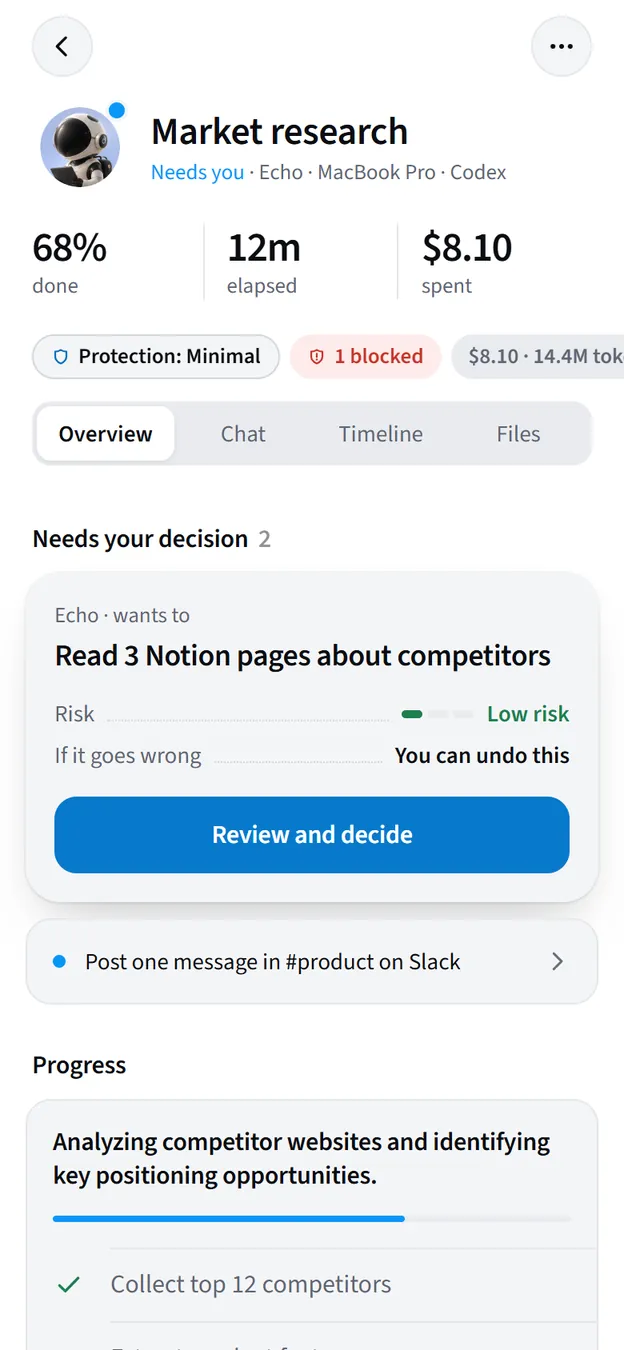
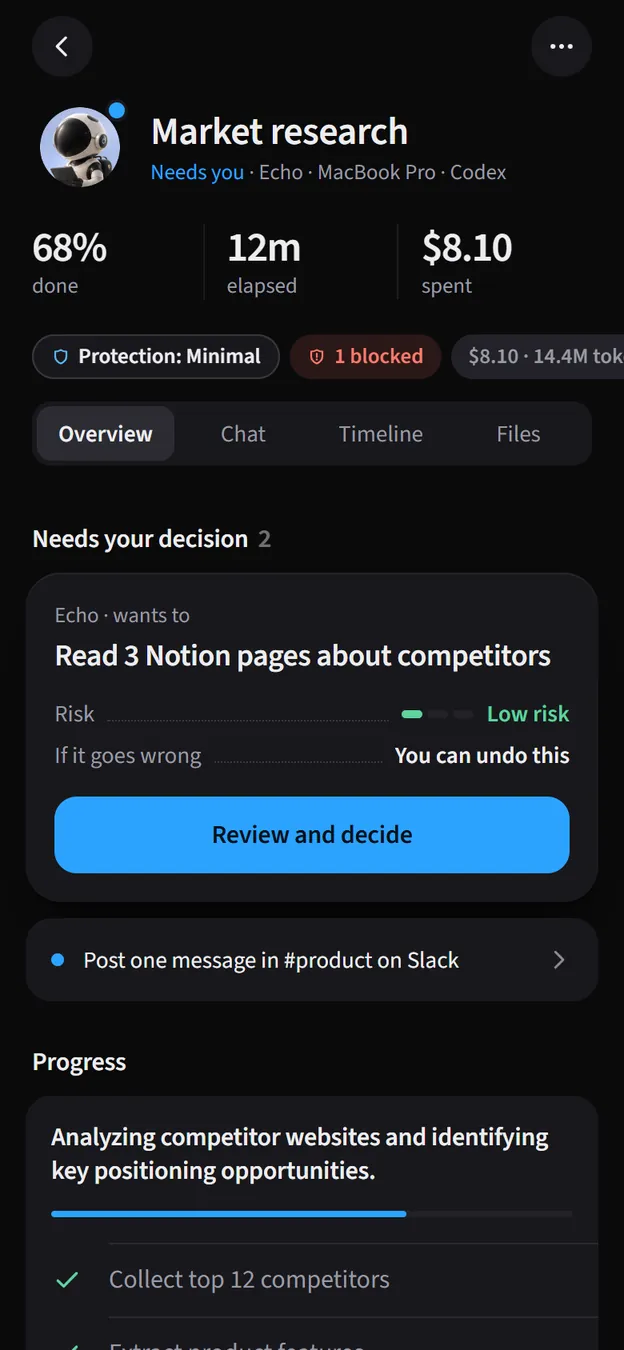
What the status means:
| Status | Meaning |
|---|---|
| Running | The agent is working on your request. |
| Needs you · Question | A permission request or a question is waiting for you. |
| Waiting for you | The agent is waiting for your reply (for example after you took over). |
| Paused | You paused it; it continues when you resume. |
| Idle | No activity for a while (30 minutes); the agent is probably waiting at its prompt. |
| Completed | The agent finished its turn, or the session was closed. |
| Failed | It stopped with an error, or a command exited with one. |
Approve tools
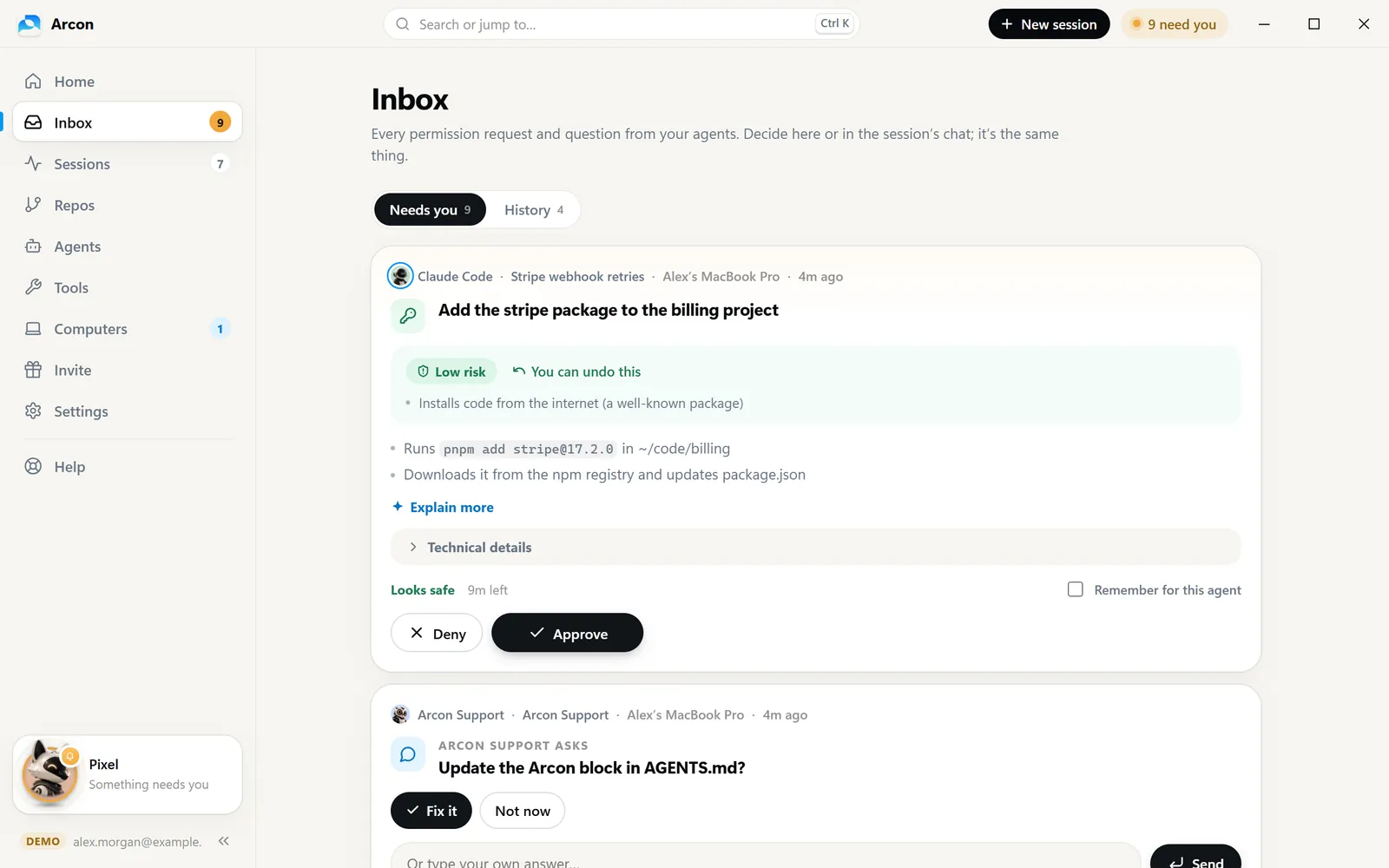
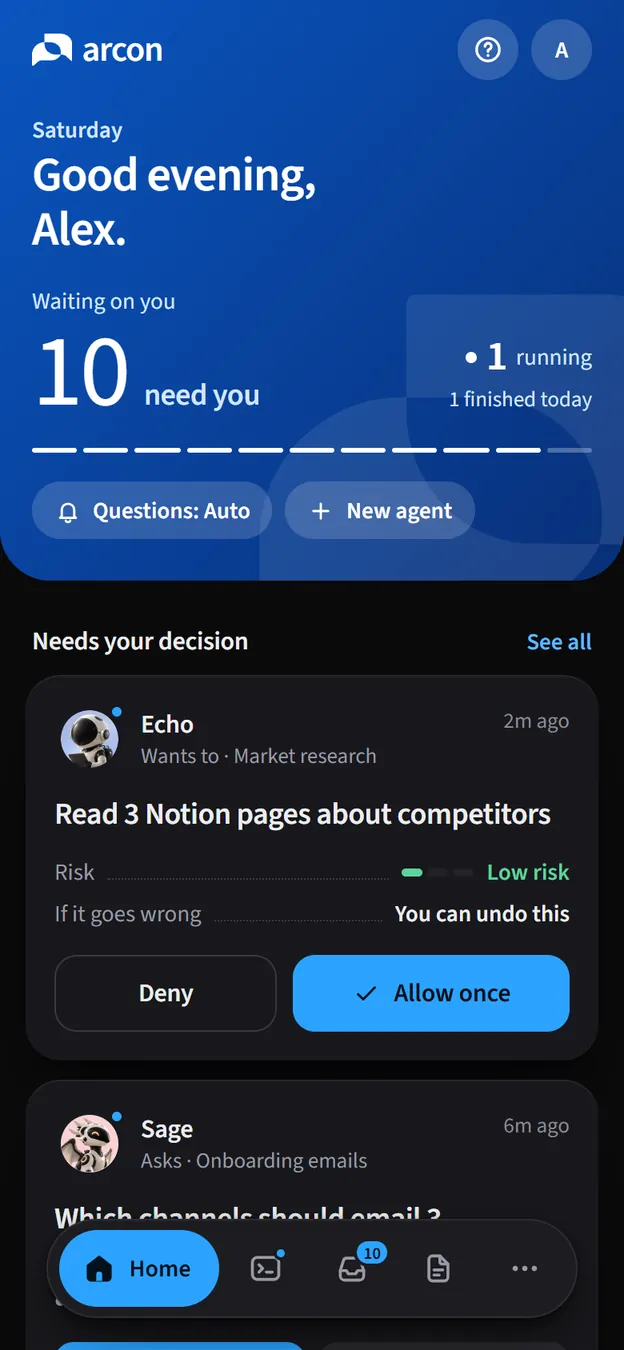
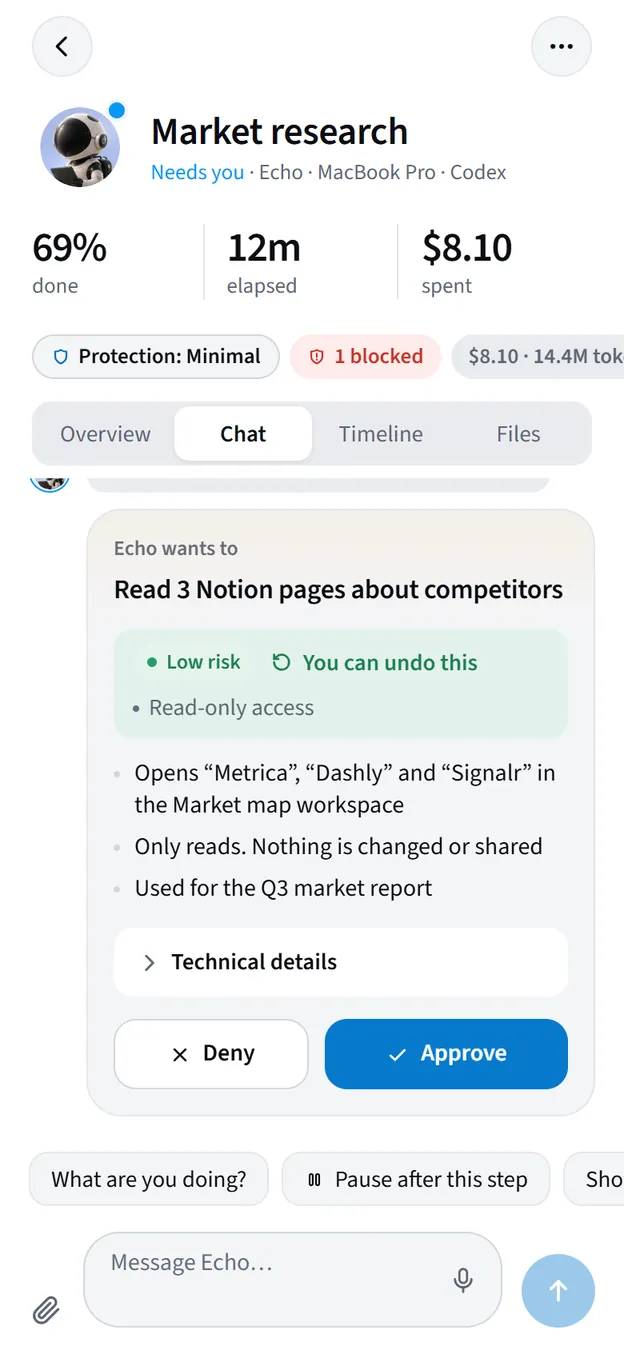
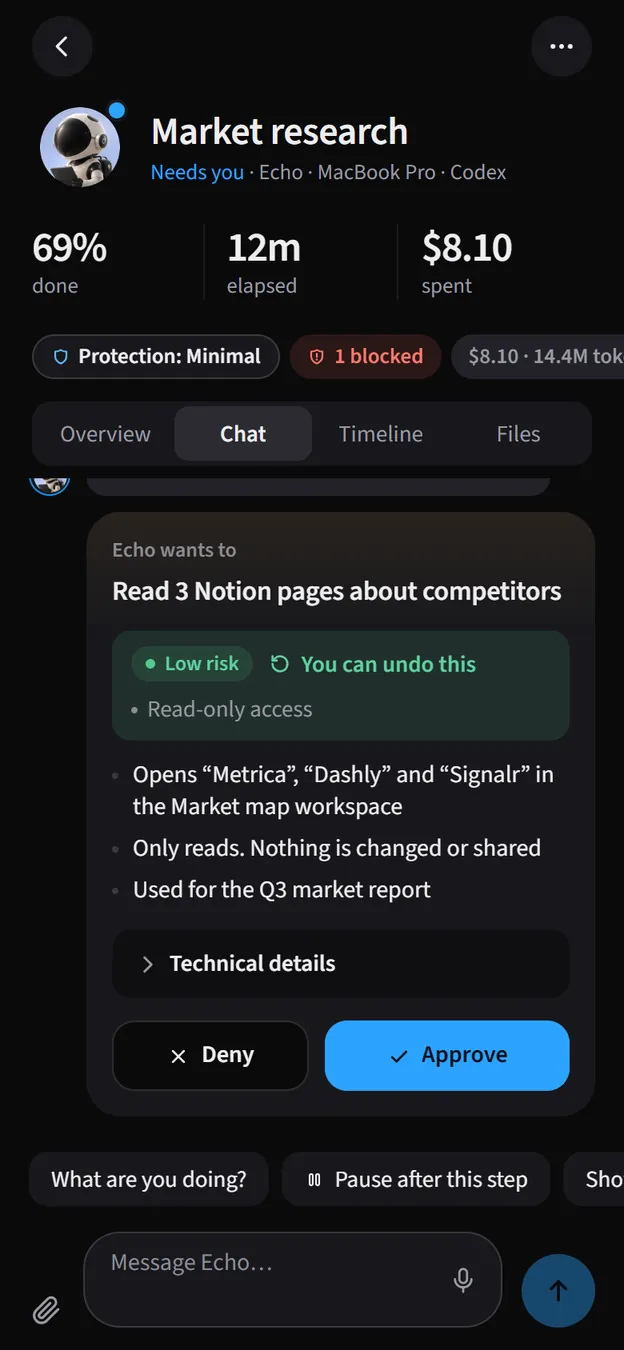
When Claude Code (or Codex, with its hooks) wants to do something that needs your permission, the request comes to your phone instead of blocking the terminal. It says in plain words what will happen, how risky it is and whether it can be undone. Tap the notification, or open Inbox, and choose Approve or Deny. On Windows and the web the same card appears on Home, in Inbox and in the session’s chat.
Everything about approvals, from reading a request to Codex’s one-time trust step and what happens when nobody answers, is in Approvals.
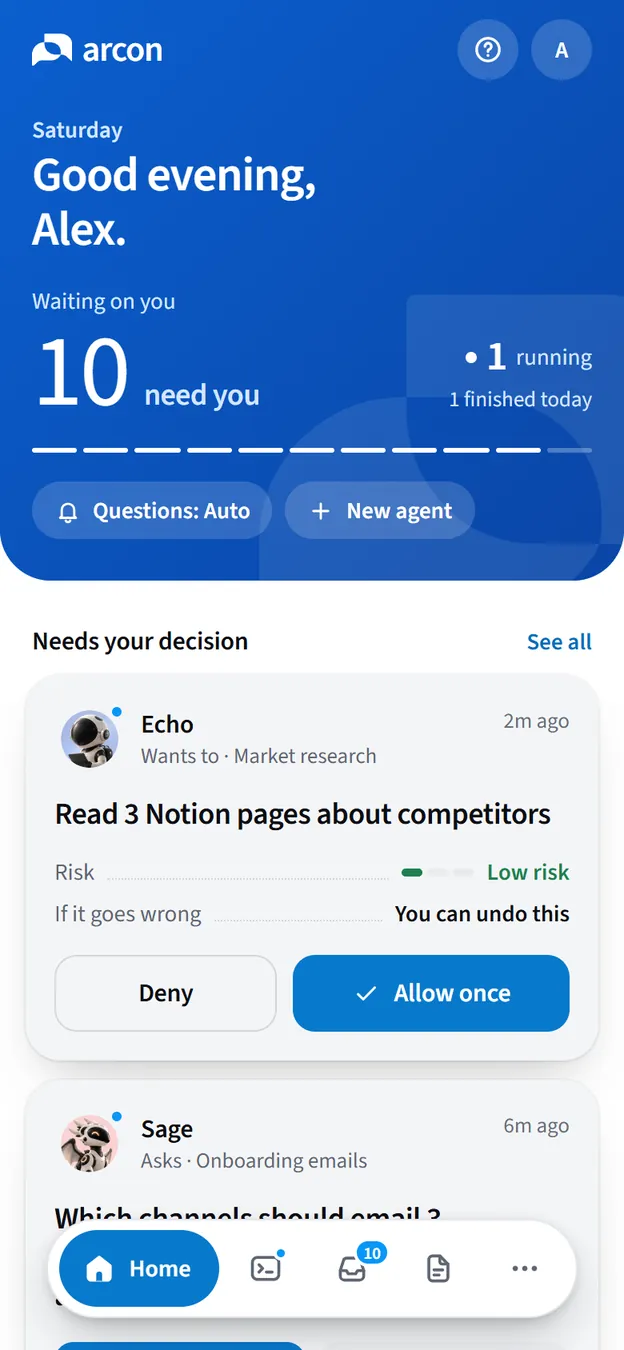
Answer questions
When the agent needs a decision, it asks with a few options and marks one as suggested. Tap an option, pick several where it says Select all that apply., or type your own answer. The answer goes straight back into the running session.
Questions wait 10 minutes. After that, Claude Code asks in the terminal instead, and agents using arcon ask continue with the suggested option and tell you so.
Chat with the agent
The Chat tab is a two-way mirror of the session. What you type in the terminal shows up (Typed in the terminal), so do the agent’s replies.
Type in Message Claude Code… to redirect or add something. Your message reaches the agent at its next step (before its next tool call), or right when it finishes its turn. You see Sending…, then Delivered.
Quick chips help on the go: What are you doing?, Pause after this step, Show sources.
Take over from your phone
Take over (phone mode) lets you run a whole conversation from your phone. With it on, when Claude Code finishes a turn it doesn’t go back to the terminal: it waits, up to 20 minutes, for your next message from the app, then carries on. The banner reads Claude Code waits for your replies here.
- Phone: flip the Take over switch in the session header (it then reads On phone), or use the … menu → Take over on phone.
- Windows app and web: the Take over switch next to Pause.
- From the terminal:
arcon phone on/arcon phone off. Or just tell Claude “I’m heading out, let’s continue from my phone”: the Arcon skill turns it on for you.
Switch it off to hand the session back (Handed back to the terminal.). While it waits, the terminal shows your phone messages as “Stop hook feedback”; that’s expected.
Pause, resume and stop
- Pause holds the agent before its next tool call (Pausing after the current step.). Resume lets it continue. A pause left alone for about 9 minutes ends that step as “Paused from Arcon”.
- Stop asks Stop this session?. Confirm and the agent stops after its current tool call; files it already produced stay. For
arcon runsessions, Stop ends the command.
Pause and Stop work for Claude Code, Codex with trusted hooks, and arcon run sessions.
Sub-agents
When Claude Code hands part of the work to a sub-agent (an explorer, a reviewer, a test runner), it shows up in the session with its own avatar and a Running → Done (or Failed) state: in the Sub-agents strip on the phone’s Overview, and in the right column on Windows and the web. Codex’s helper agents appear the same way.
Documents
Plans, reports and summaries are easier to read as documents than as chat. Files Claude writes that end in .md, .csv, .json, .png or .pdf are uploaded to your account automatically (up to 25 MB), and agents publish anything else with arcon publish. Markdown renders as a proper document: headings, tables, checklists, code.
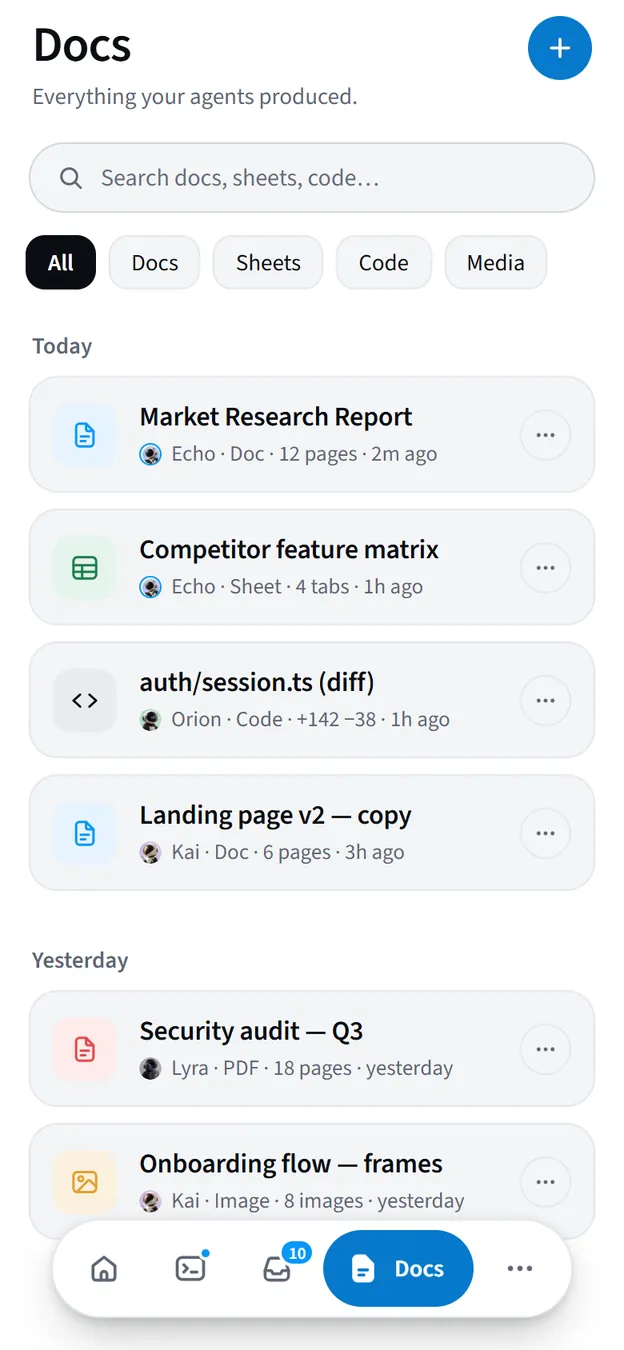
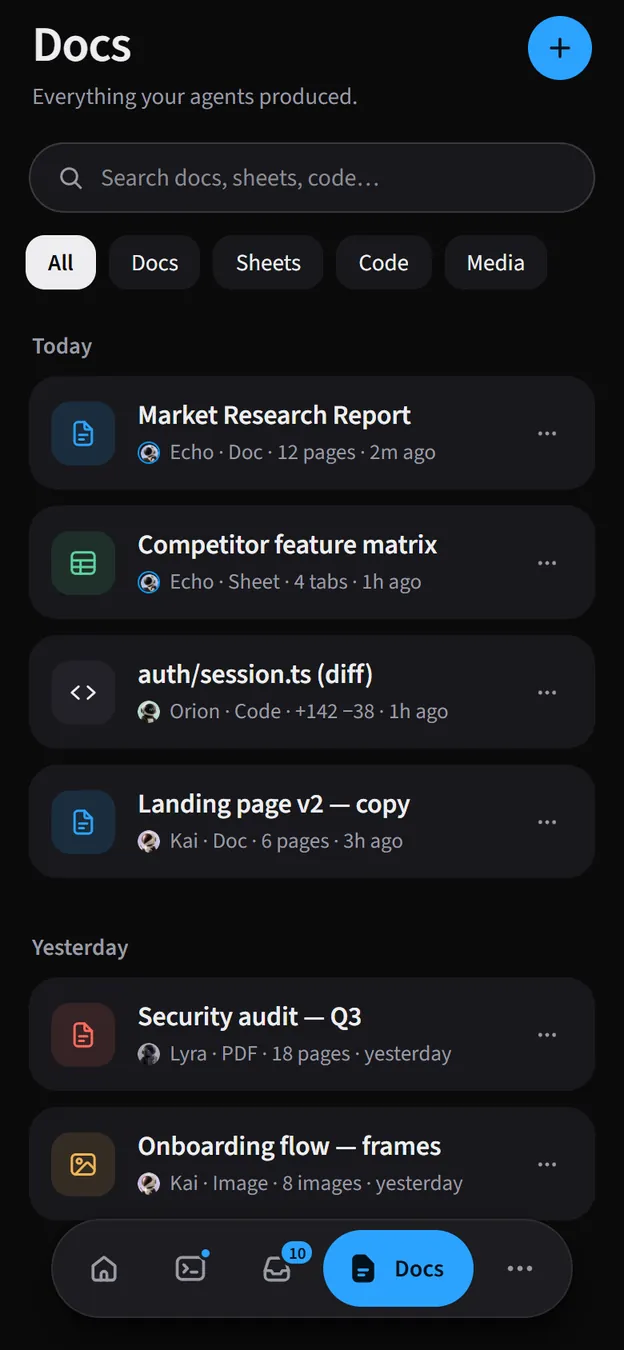
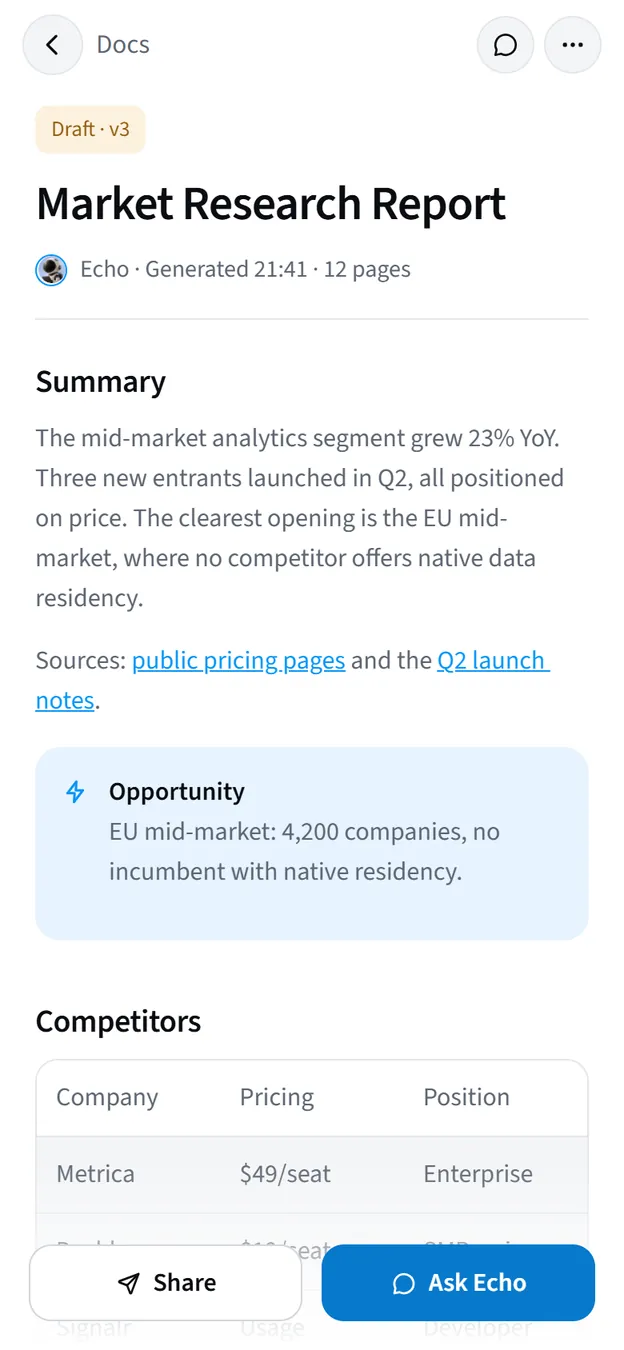
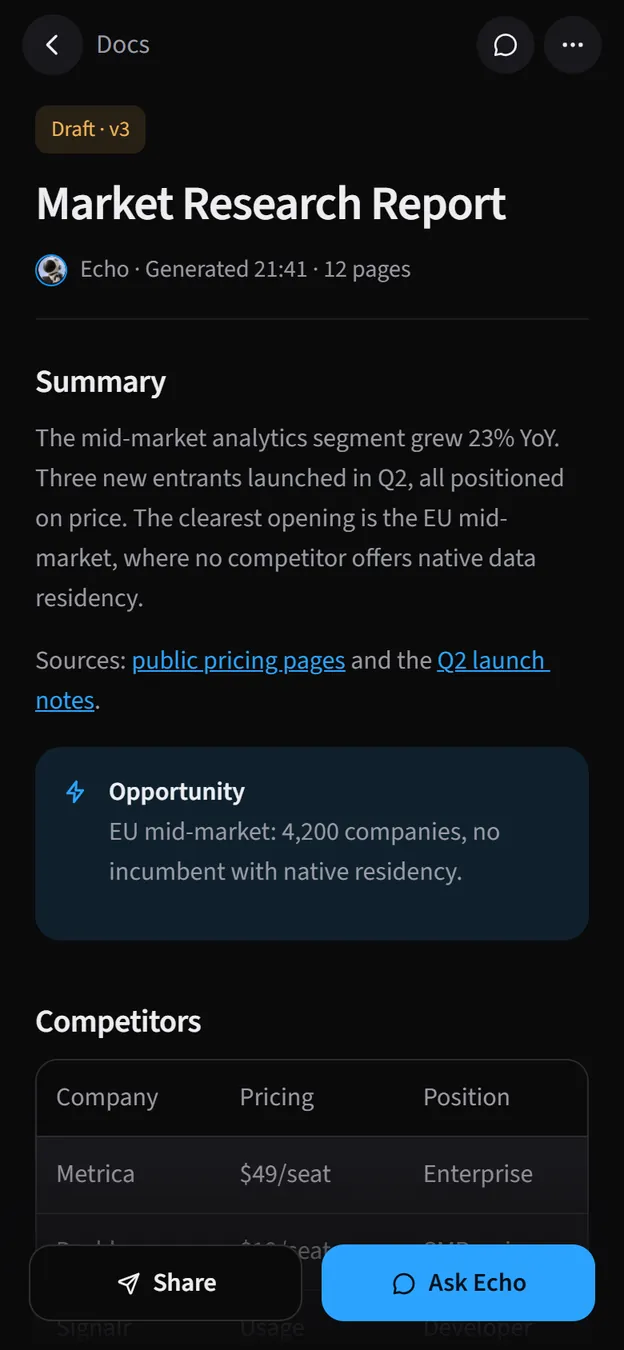
Find them in the phone’s Docs tab or a session’s Files. From a document, Ask Claude Code jumps to the chat with that agent, and Share sends it on.
Notifications
- Phone: a push for every request and question, and when a session needs you, completes or fails. Set up in Set up your phone.
- Windows: the companion speaks up, plus a Windows notification when an agent needs you (Notification sounds in Settings; Do not disturb silences everything).
- Web: click Turn on notifications on Home (or Desktop notifications in Settings) for browser alerts while the tab is open.
Codex notes
Arcon follows Codex through its hooks and its session logs. With the hooks installed and trusted (Connect Codex), it can do most of what it does for Claude Code:
| Claude Code | Codex (hooks trusted) | |
|---|---|---|
| Session, prompts, steps, tool calls | Yes | Yes |
| Final answer of each turn in the chat | Yes | Yes |
| Checklist, questions, documents | Yes | Yes, through the Arcon skill (AGENTS.md) |
| Approve tools from the phone | Yes | Yes, for 2 minutes before Codex asks in the terminal (9 in Take over) |
| Boundaries checked before a tool runs | Yes | Yes |
| Pause and Stop | Yes | Yes (held or denied at the next tool call) |
| Your phone messages reach the agent | Yes | No: Arcon replies with a short notice instead |
Without trusted hooks, Codex sessions are follow-only: you see everything, but approvals stay in the terminal. Only Codex sessions started after Arcon is running are picked up.
The web dashboard
Everything above also works in a browser at arcon.dev/app: Home, Inbox, Sessions, Agents, Computers, Invite, Settings and Help. Press Ctrl K (⌘ K on a Mac) to search or jump anywhere. On a phone’s browser it switches to bottom tabs.