- Docs
- Get started
Set up your phone

Download the app
Open your account page on the phone
In your phone’s browser, go to arcon.dev/account and sign in (email, then the code). You’ll see Your Arcon downloads.
Tap Download APK
On the Android — direct APK card, tap Download APK. The card shows the version, its SHA-256 fingerprint and the size. It needs Android 10 or later.
Install it
- Open the downloaded file from the notification, or from Files → Downloads.
- Android asks whether your browser may install apps (“install unknown apps”). Tap Settings, turn on Allow from this source, go back, and tap Install.
- If Google Play Protect warns about an app it doesn’t know, that’s because Arcon isn’t installed from the Play Store. Only continue for a file you downloaded from arcon.dev/account.
- Open Arcon. You can turn “install unknown apps” off again afterwards.
Sign in
Tap Continue with email, type your email, tap Send code and enter the code from the newest Arcon email. New here? Tap Have an invite code? first. The details, including what to do when no email arrives, are in Get access.
The pairing screen
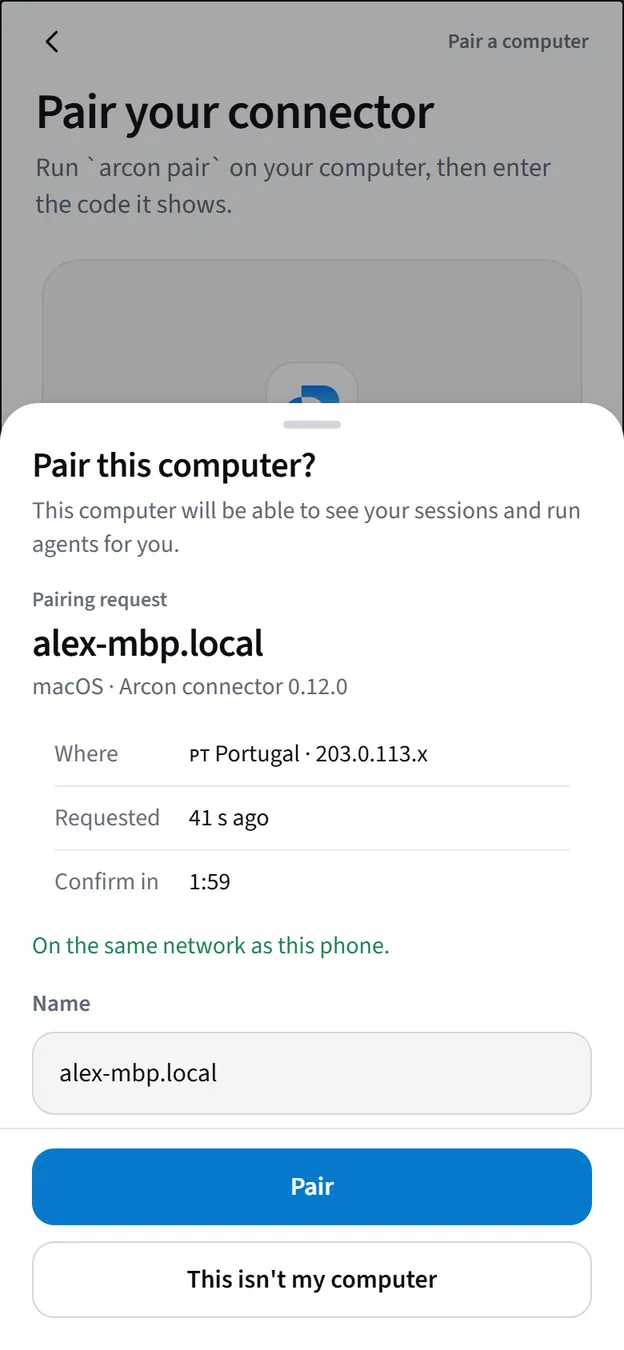
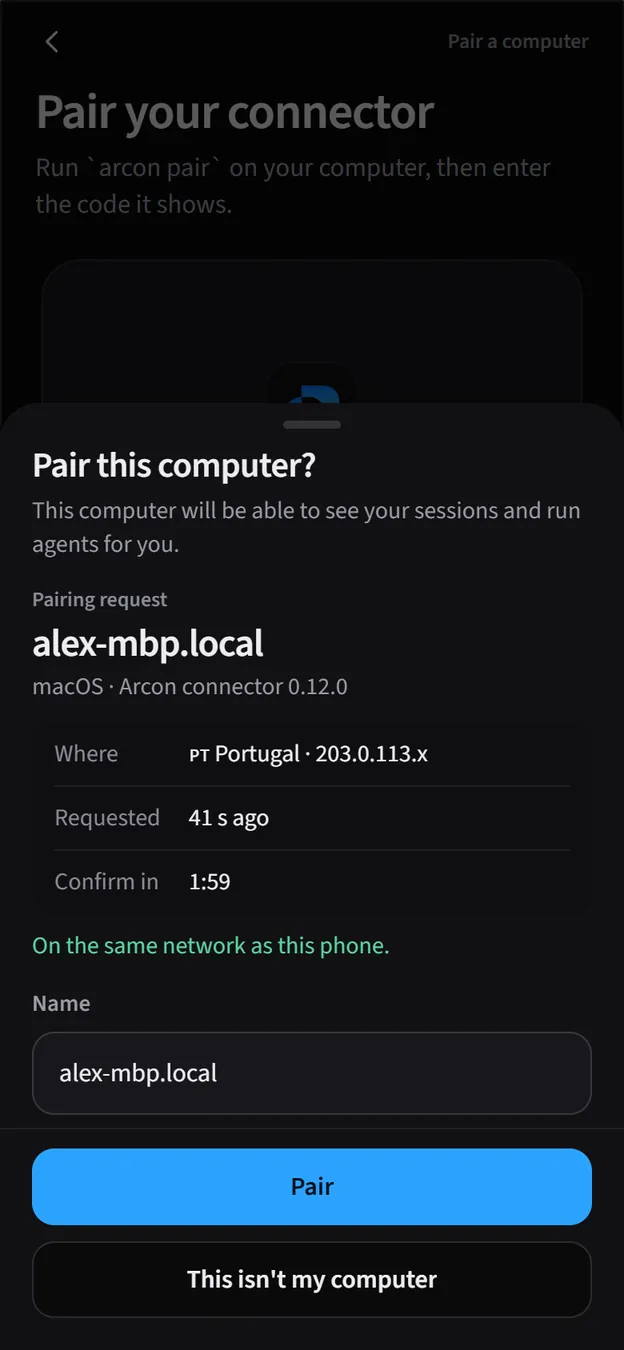
The first time you sign in, the app opens Pair your connector. This is where a computer gets linked to your account: the computer shows a code, you scan it (or type it) here, and then you confirm the computer’s details before anything is paired.
If your computer is ready, go to Set up your computer → Pair and keep this screen open. If not, tap Skip for now. You can pair any time later from More → Computers → +.
Turn on notifications
Without notifications you’d have to keep checking the app. With them, your phone tells you the moment an agent needs you.
Allow push
Open More → Settings → Notifications and tap Enable push, then allow notifications when Android asks. The card should now say Push notifications are on.
Send yourself a test
Tap Send test notification. It arrives a couple of seconds later. Nothing? If the status says Blocked, tap Open settings and allow notifications for Arcon.
You get a push when:
| What happened | The notification | Tapping it opens |
|---|---|---|
| An agent asks for permission | The request, e.g. “Allow Claude Code to use Bash?” | The request, ready to approve or deny |
| An agent asks you a question | The question | The question with its options |
| A session is waiting for you | Agent needs you | The session |
| A session finished or failed | Session completed · Session failed | The session |
On the same screen, switches for Approvals, Questions, Errors, Finished sessions and Routines choose what reaches you, and Quiet hours and a Daily summary keep the rest of the day calm.
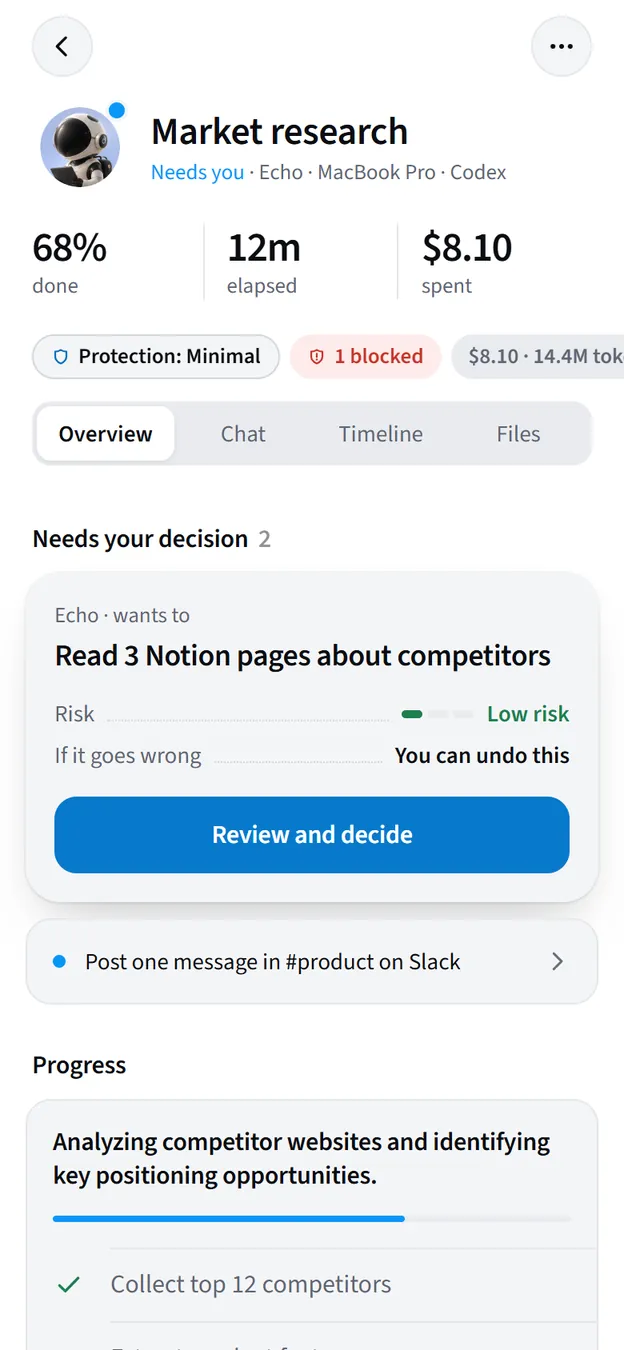
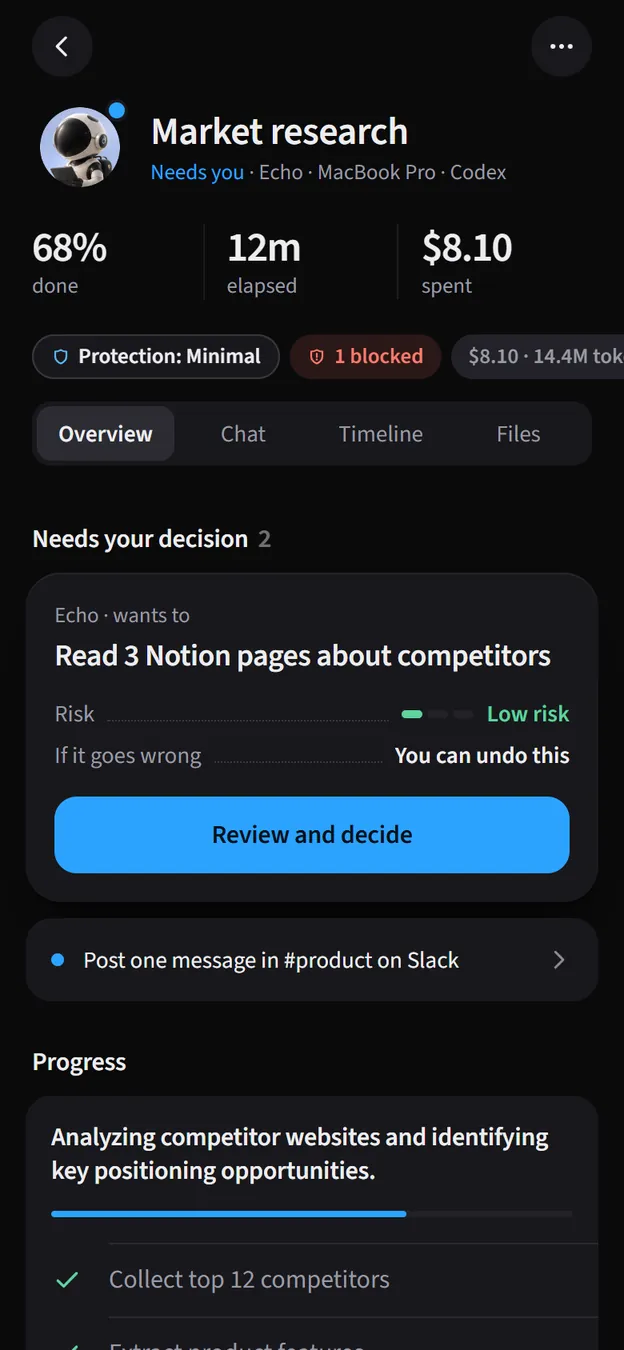
The app at a glance
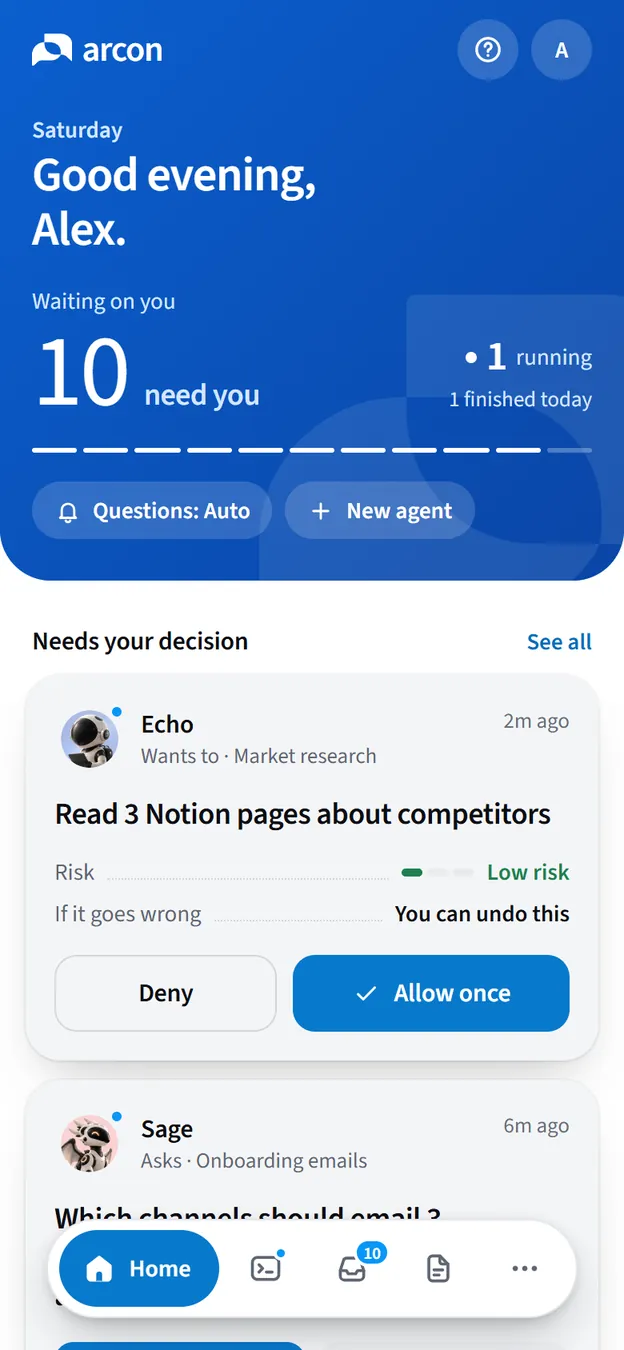
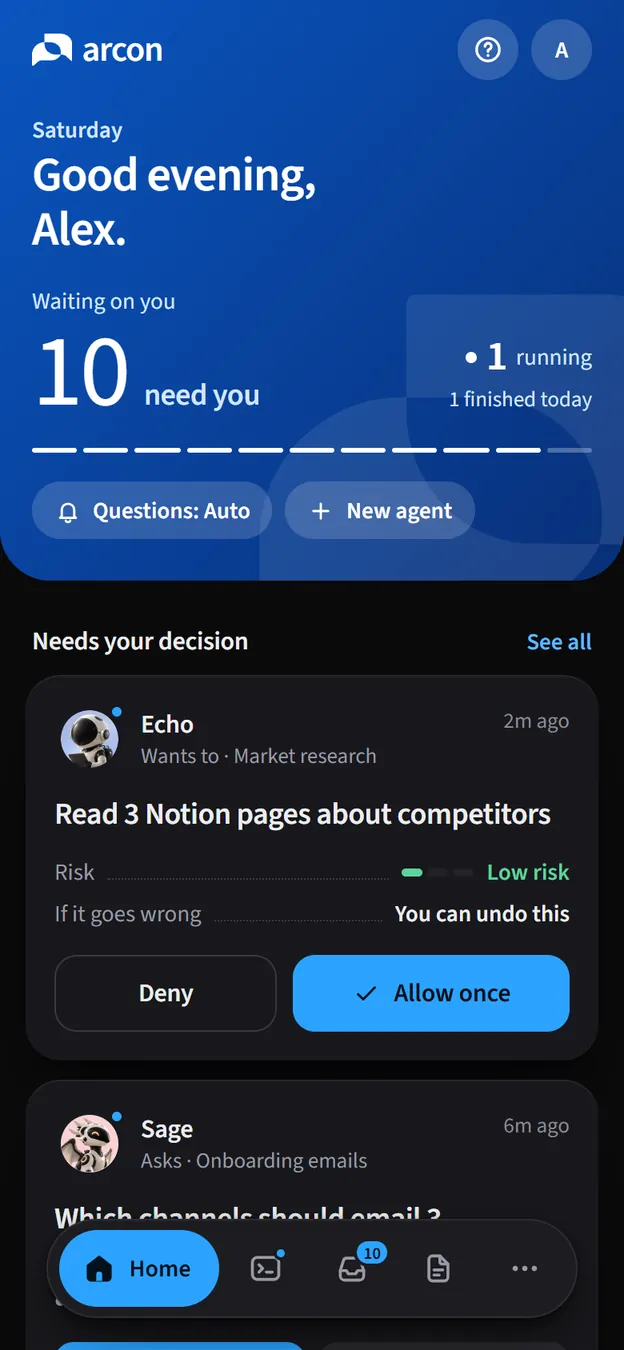
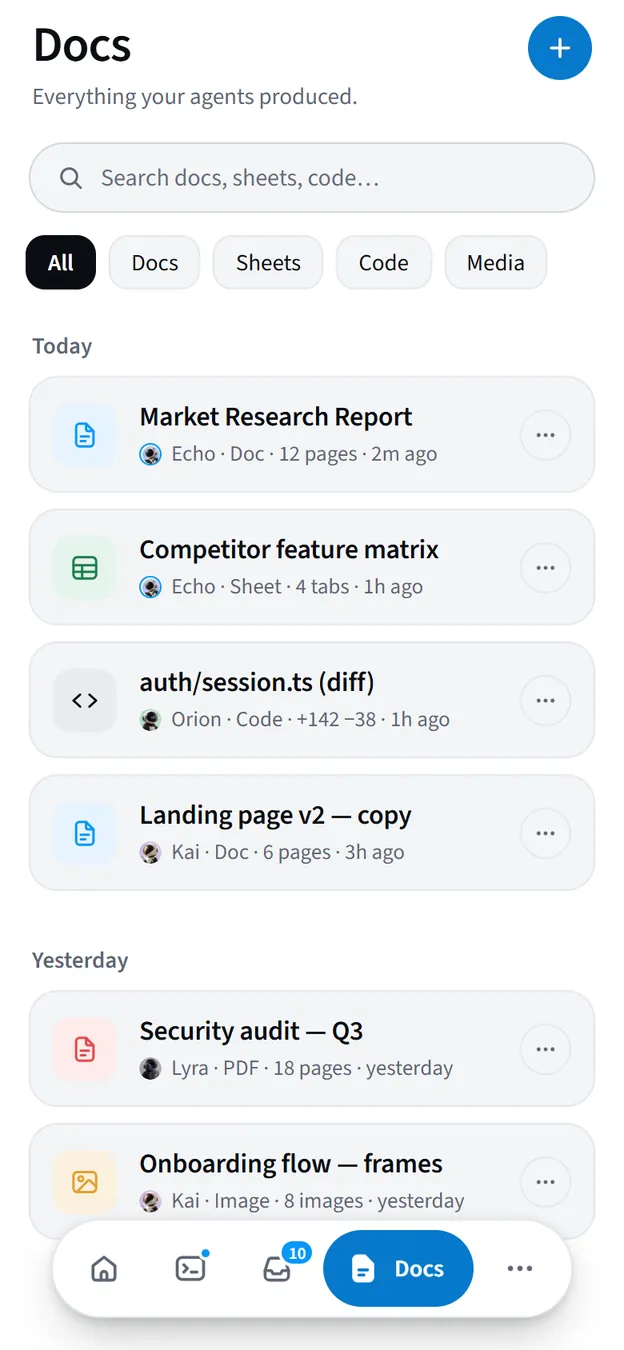
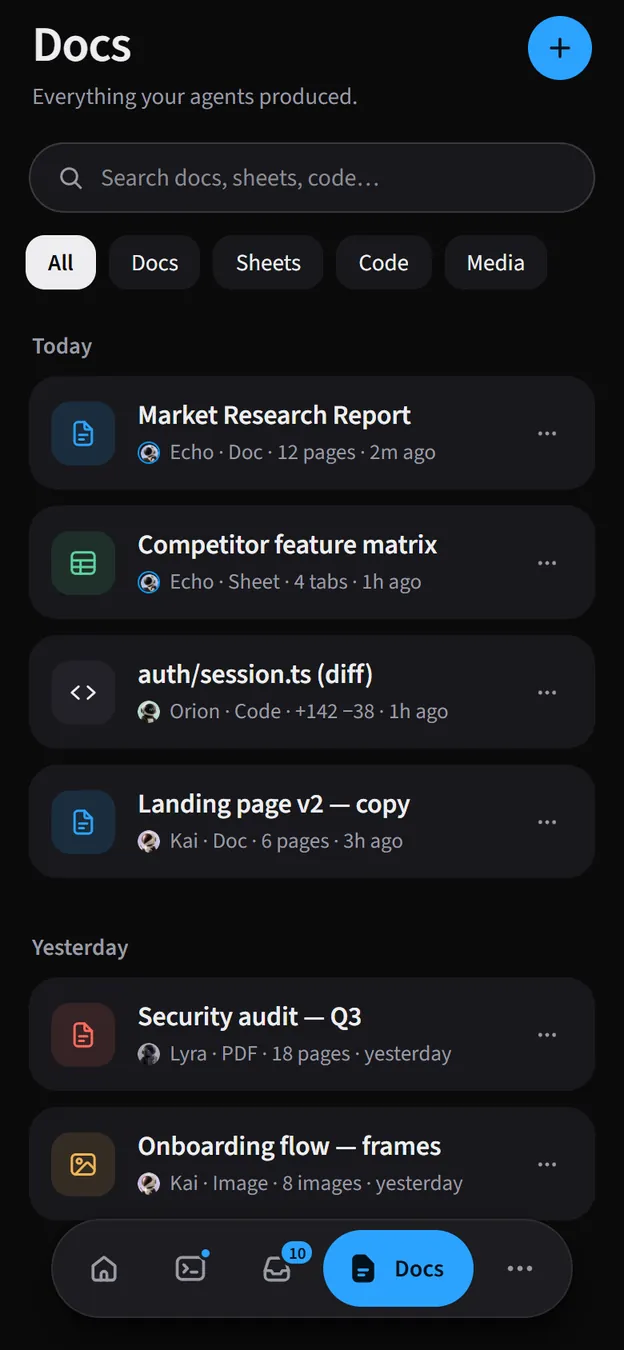
The bar at the bottom has five tabs:
| Tab | What’s there |
|---|---|
| Home | A greeting, what needs your attention, and the sessions active now. |
| Sessions | Every session, most urgent first, with search and filters. The + button starts a new one. |
| Inbox | Approvals, questions and errors waiting for you, and what you answered earlier. |
| Docs | Everything your agents produced: documents, sheets, code and images. |
| More | Agents, Routines, Projects, Tasks, Usage, Security, Computers, Tools, Settings, and Help and support. |
iPhone
On iPhone, Arcon runs as a web app you add to your Home Screen from Safari. It opens full screen like any other app and (on iOS 16.4 or later) sends you notifications. Sign in at arcon.dev/app first, then:
Tap Share
In Safari, tap the Share button: the square with an arrow, in the toolbar at the bottom (at the top on iPad). In Chrome on iPhone it’s in the address bar, top right.
Tap Add to Home Screen
Scroll the list if needed and tap Add to Home Screen.
Tap Add
Check the name says Arcon and tap Add. Open Arcon from its new Home Screen icon; you stay signed in.
Then turn on notifications from inside the installed app: Settings → Push notifications (or Turn on notifications on Home), and allow them when iOS asks.
The web app updates itself: it picks up a new version in the background and switches over the next time you open it. Prefer a native app? iPhone builds go through TestFlight when one is published; the iPhone & iPad card on arcon.dev/account then has an Open TestFlight button.