- Docs
- Get started
Arcon for Windows

The Windows companion: pick a character, see when agents are working or need you, approve from its bubble, watch sub-agents orbit it, and hide it when you need the screen.
Show transcriptHide transcript
Arcon for Windows comes with a companion: a small animated character that floats above your apps, and shows what your agents are doing.
Choose from twenty-four animal robots and twelve astronauts, then give it a name and a color.
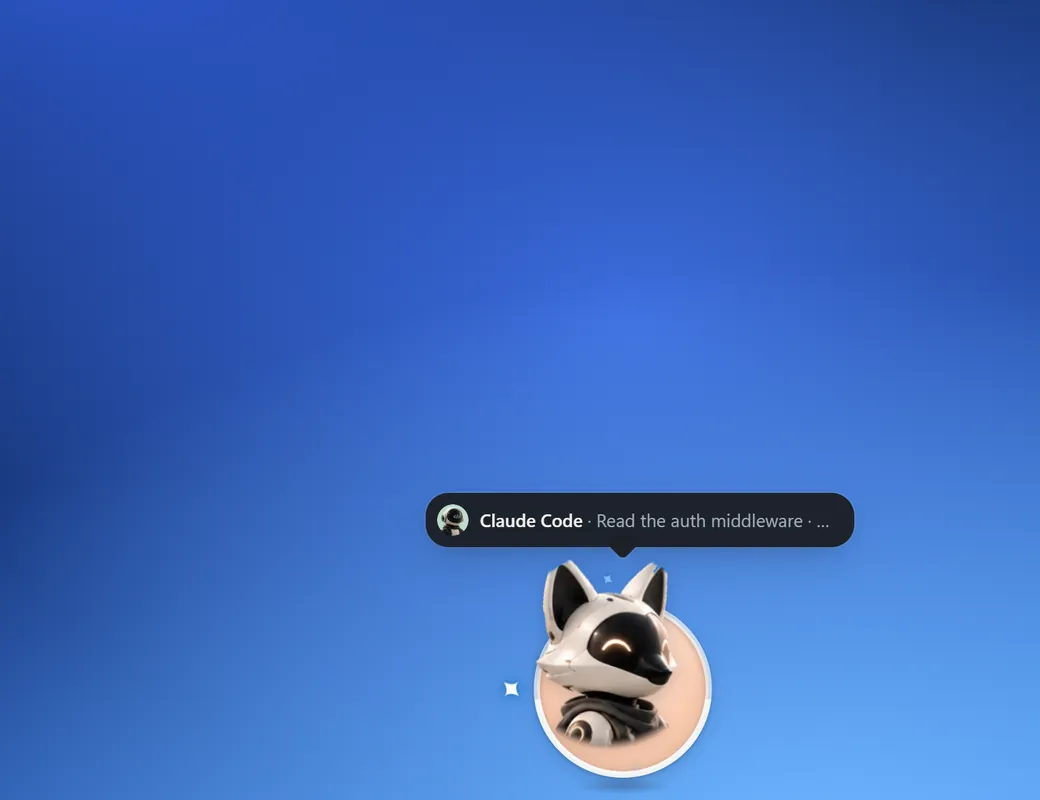
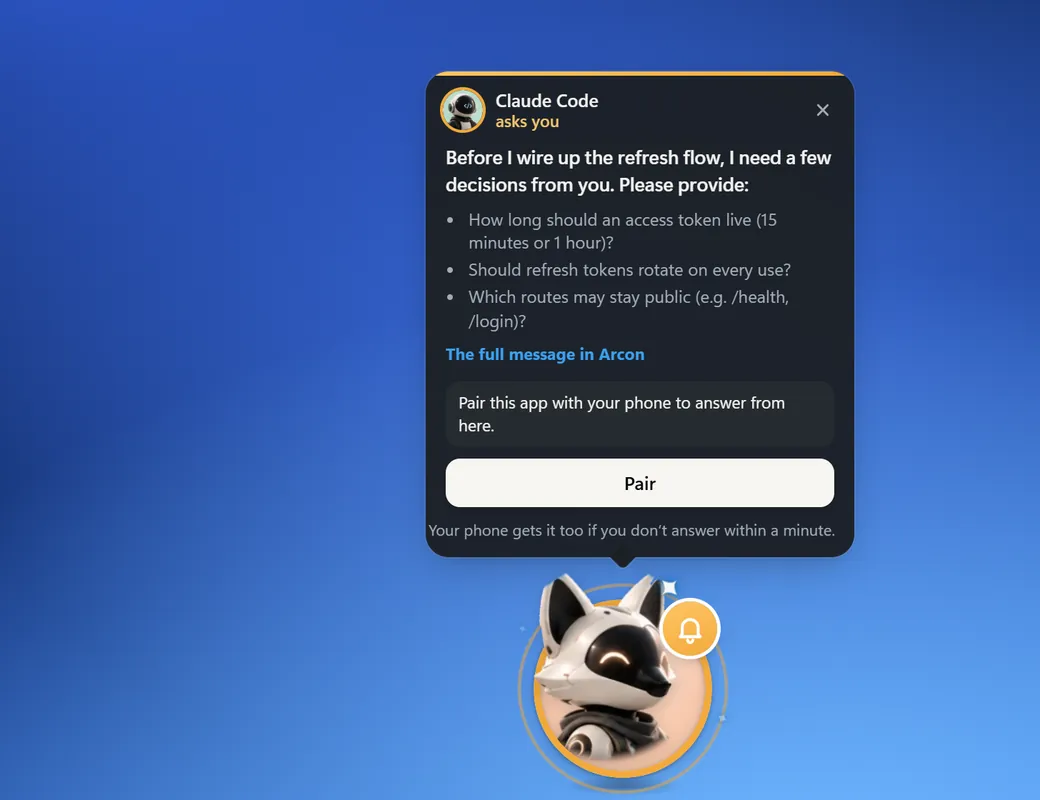
It shows when an agent is working, when it needs you, and when it’s done. Then it naps, until something happens.
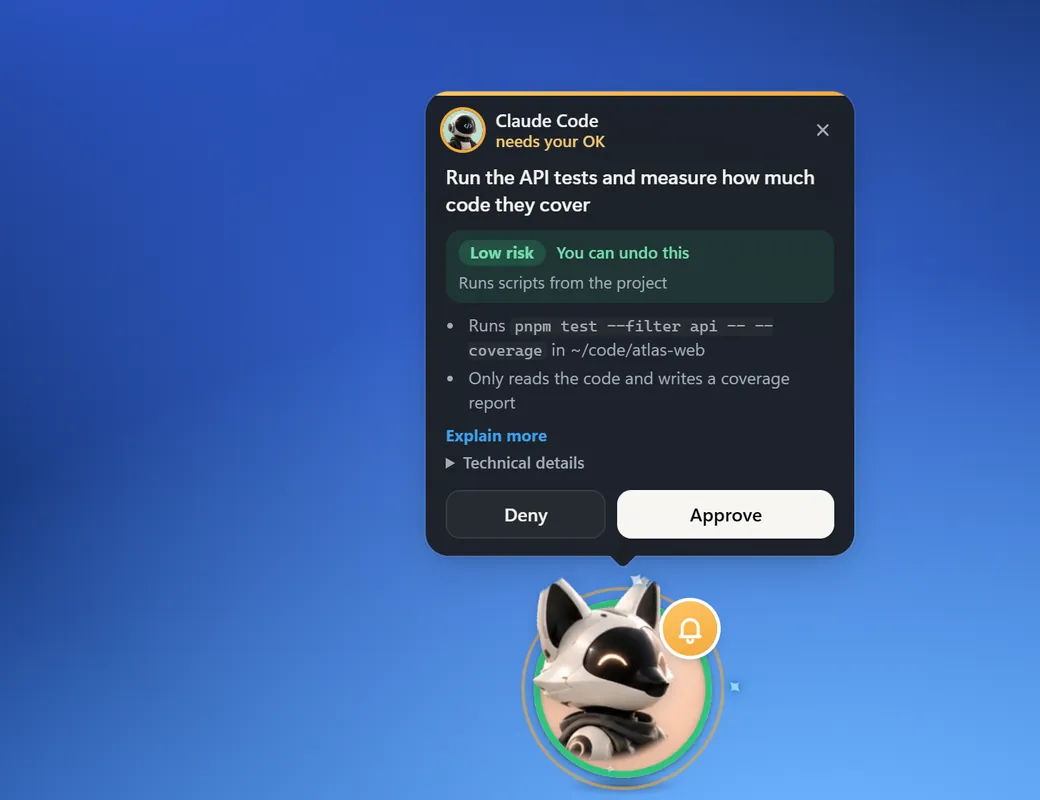
Approve or deny right from its bubble, without opening anything.
When an agent hands work to sub-agents, they orbit the companion, each with its own picture and state.
Turn on one character per agent, and up to four companions keep you company. Need your screen?
Hide it for an hour, until something needs you, or with Ctrl + Alt + A. Your agents, with a face. Arcon for Windows.
Download and install
Install the connector in WSL, pair it and confirm on your phone, run it in the background, then install the Windows app, pair it through your phone and trust Arcon’s hooks in Codex.
Show transcriptHide transcript
Setting up Arcon on Windows? Here’s how. In WSL, paste the one-line installer from arcon.dev. It checks the release signature.
Run arcon pair, and scan the code with the Arcon app. Your phone shows the computer’s name, system, rough location and network.
If it’s yours, tap Pair. Then keep it running in the background. Next, download Arcon for Windows, and run the setup.
It isn’t code-signed yet, so Windows may warn you: More info, then Run anyway. In the app, open Settings, This computer, and choose Pair.
Approve it on your phone, and you’re connected. Now approve and answer your agents right at your desk, with your companion close by.
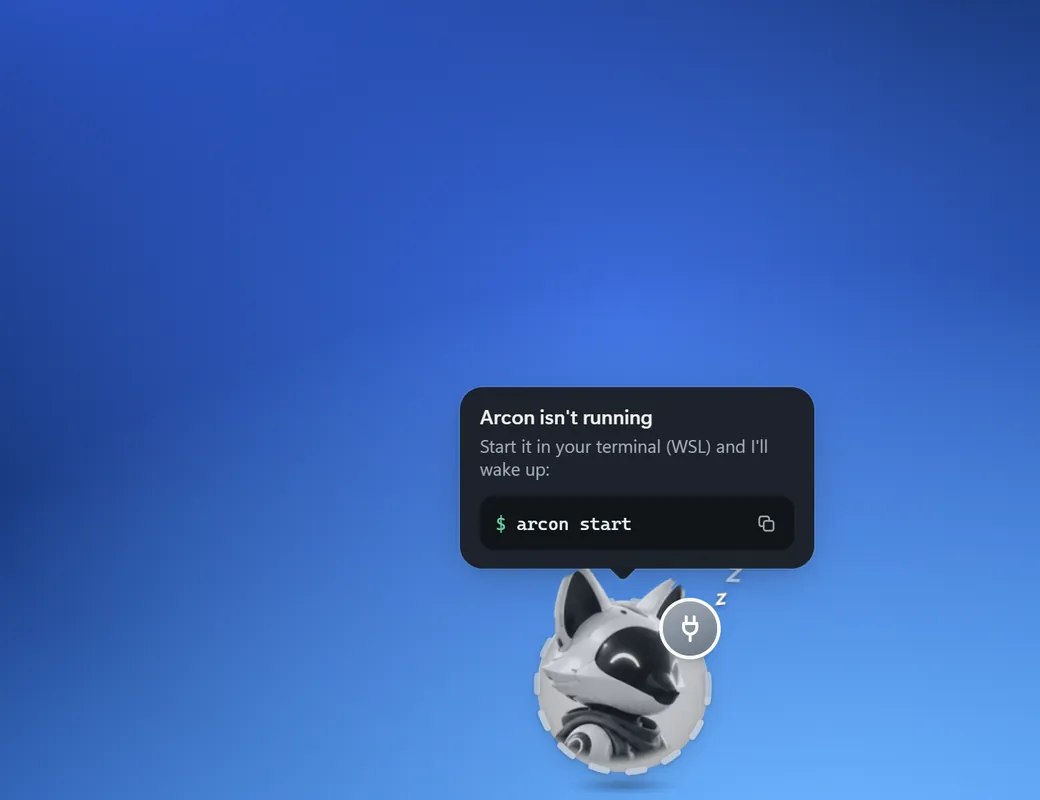
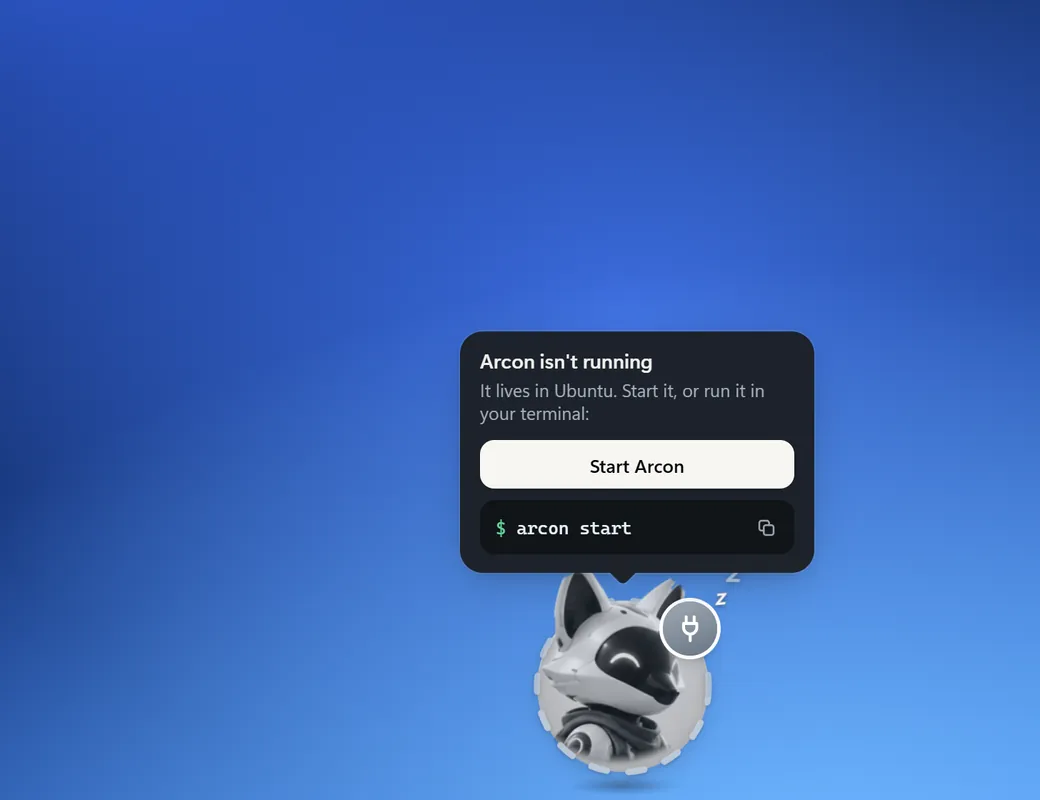
Every session shows its protection level. While it’s open, the app keeps WSL running. If Arcon stops, press Start Arcon, or turn on Start with Windows.
Using Codex? Trust Arcon’s hooks once in Codex. Set up once. Work from anywhere.
Download the installer
Sign in on arcon.dev and download Arcon for Windows. You get an
Arcon-Setup-….exefile.Run it
The installer needs no administrator rights: it installs for your user, opens Arcon and adds Arcon shortcuts to the desktop and the Start menu. If Windows shows Windows protected your PC, click More info → Run anyway; that appears because the early-access build isn’t code-signed yet.
Meet your companion
On first launch Arcon asks you to Choose your companion. Pick one (you can change it any time) and the main window opens to sign in.
Sign in and pair
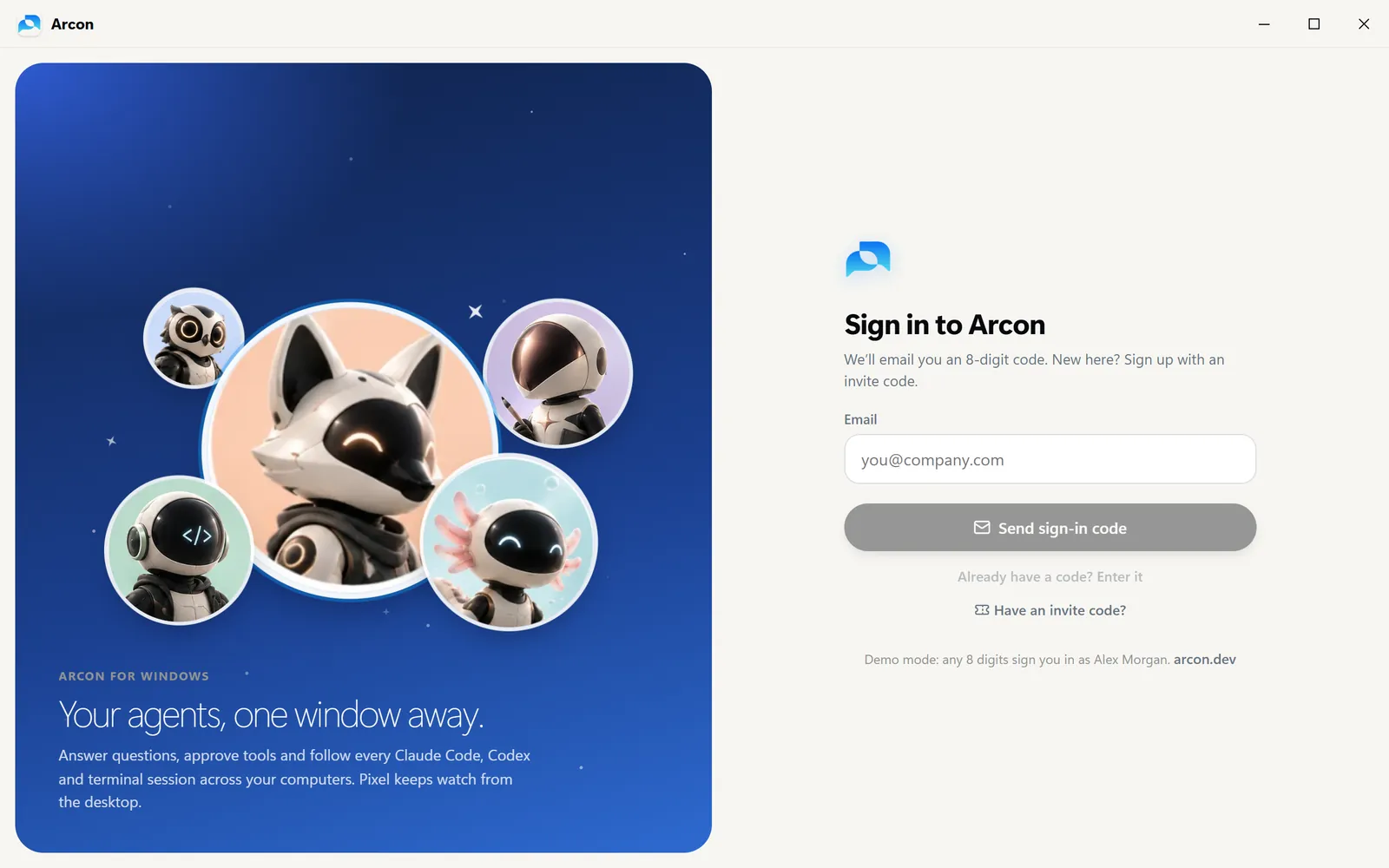
Type your email, click Send sign-in code, then enter the 8-digit code from the email and click Continue. New here? Click Have an invite code? first. You stay signed in; the sign-in is stored with Windows’ own encryption.
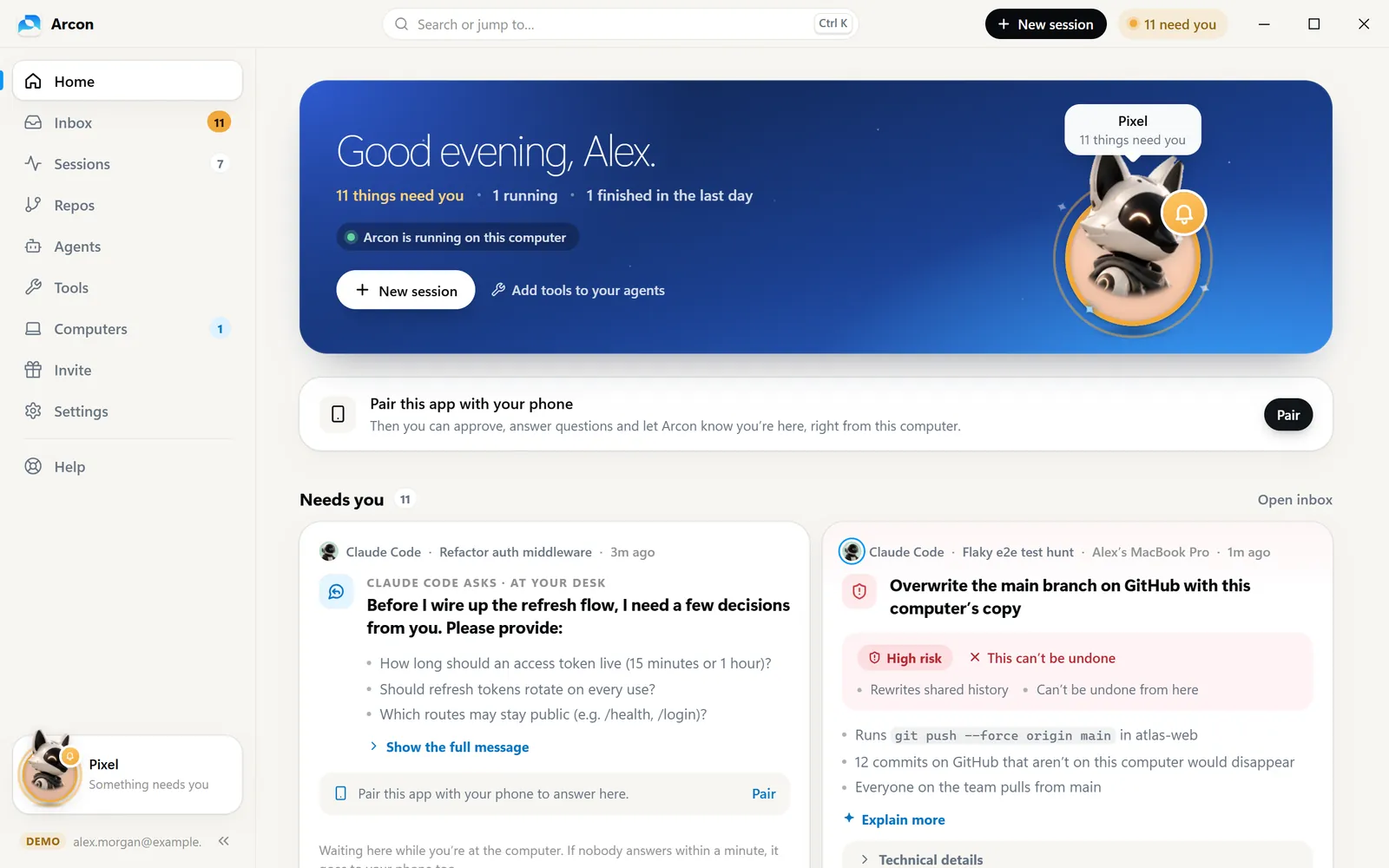
Signed in, the app shows everything, but it can’t approve, answer or tell Arcon you’re at your desk until you pair it with your phone. Open Settings → This computer and click Pair next to Pair this app with your phone. On your phone, open Arcon and approve Pair Arcon for Windows; the app waits five minutes, then says Paired. This app can now approve and answer on this computer.
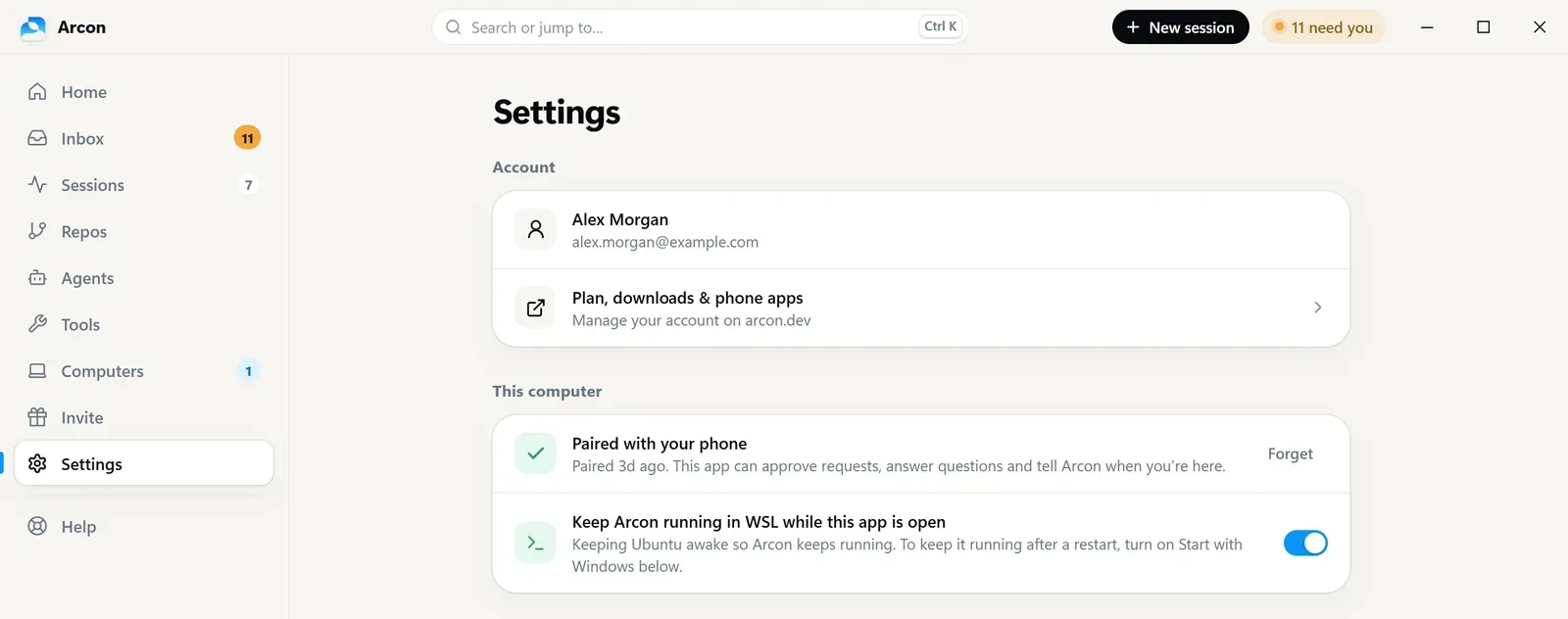
Keeping Arcon running in WSL
Windows shuts a WSL distro down about 30 seconds after its last terminal closes, and that stops Arcon. While the Windows app is open it keeps WSL running for you, so Arcon keeps working after you close your terminals.
- The switch is in Settings → This computer: Keep Arcon running in WSL while this app is open. It applies when Arcon runs in WSL on this PC; a PC where Arcon runs natively on Windows doesn’t need it.
- If Arcon isn’t running, the app says Arcon isn’t running on this computer with a Start Arcon button, which runs
arcon start --detachin your WSL distro. - When WSL itself has a problem (WSL not installed, the distro missing), the app says so in one plain sentence instead of retrying forever.
- To keep it running after a restart too, turn on Start with Windows (in Settings or the tray menu).
A tour of the main window
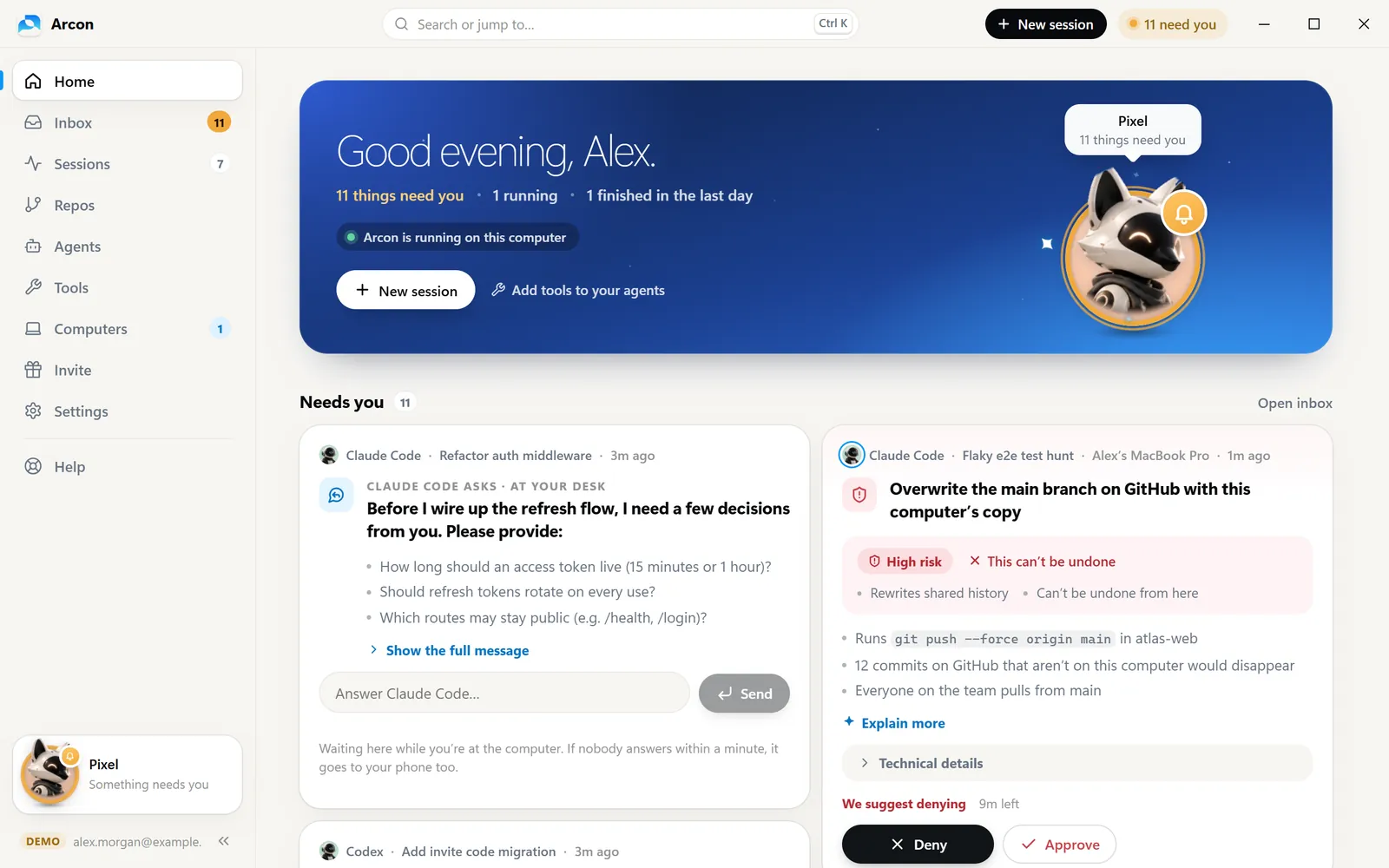
| Sidebar | Shortcut | What it’s for |
|---|---|---|
| Home | Ctrl 1 | Needs you, working now, recent. |
| Inbox | Ctrl 2 | Every permission request and question. |
| Sessions | Ctrl 3 | Every Claude Code, Codex and terminal run on your computers, most urgent first. |
| Repos | Ctrl 4 | The repositories your agents work in. |
| Agents | Ctrl 5 | Rename agents, give them a face and a colour; it shows on your phone too. |
| Tools | Ctrl 6 | Your agents’ tools (MCP servers) on each computer. |
| Computers | Ctrl 7 | Your paired computers, online or offline, and updates. |
| Invite | Ctrl 8 | Your invite code and link. |
| Settings | Ctrl 9 | Account, companion, notifications, WSL and more. |
Ctrl K searches or jumps anywhere, Ctrl N starts a new session and ? lists every shortcut. Closing the window doesn’t quit Arcon: it keeps running in the tray.
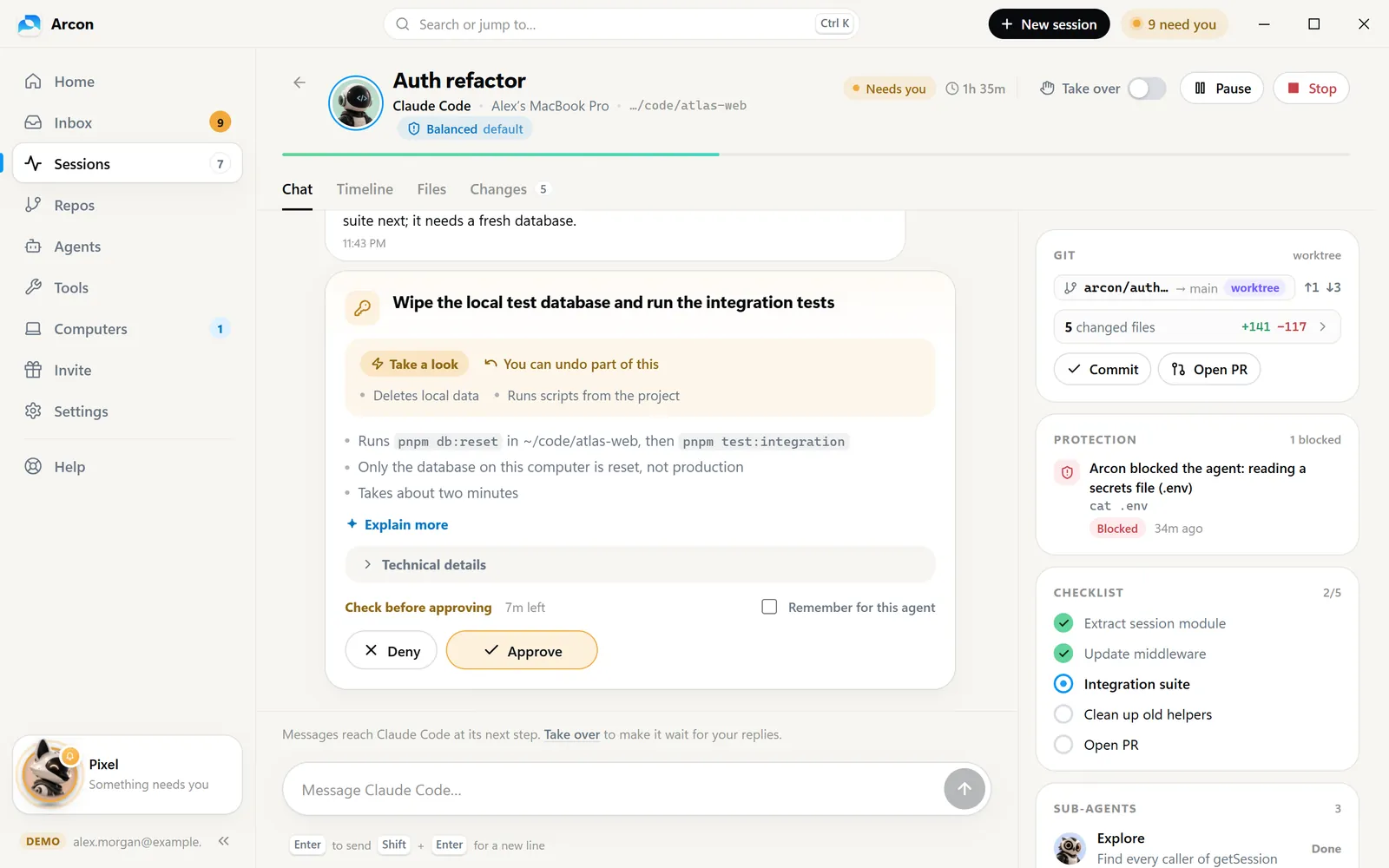
In a session, Take over, Pause and Stop sit at the top; Ctrl Shift 1–5 switch between Chat, Checklist, Timeline, Files and Changes. On a request, A approves and D denies. How all of this works is in Day to day.
Your companion
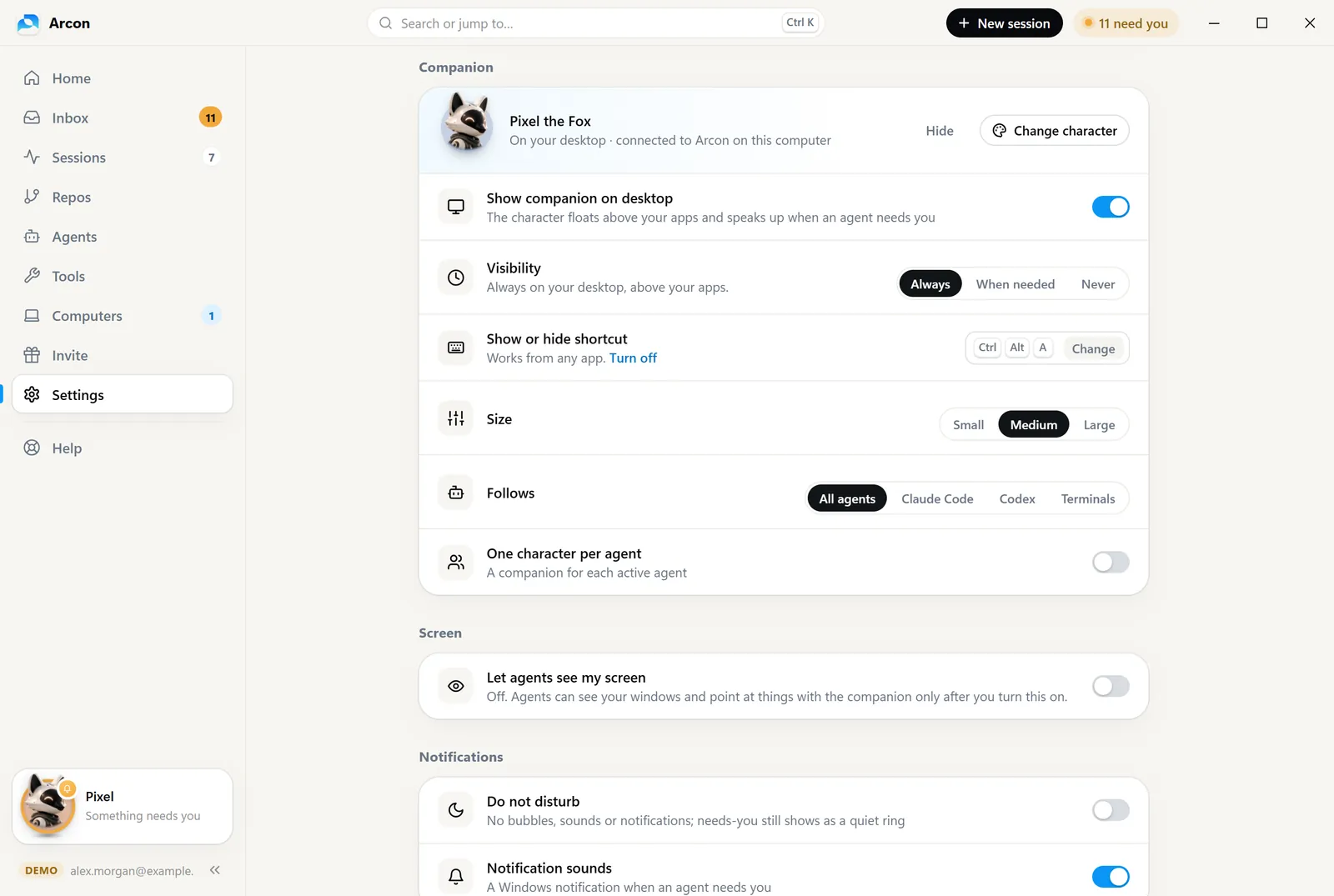
The companion lives in a corner of your screen, above your other windows. It follows your agents and speaks up only when there’s something to say. Choose from 24 animal robots and 12 astronauts, and give it a name and an accent colour.
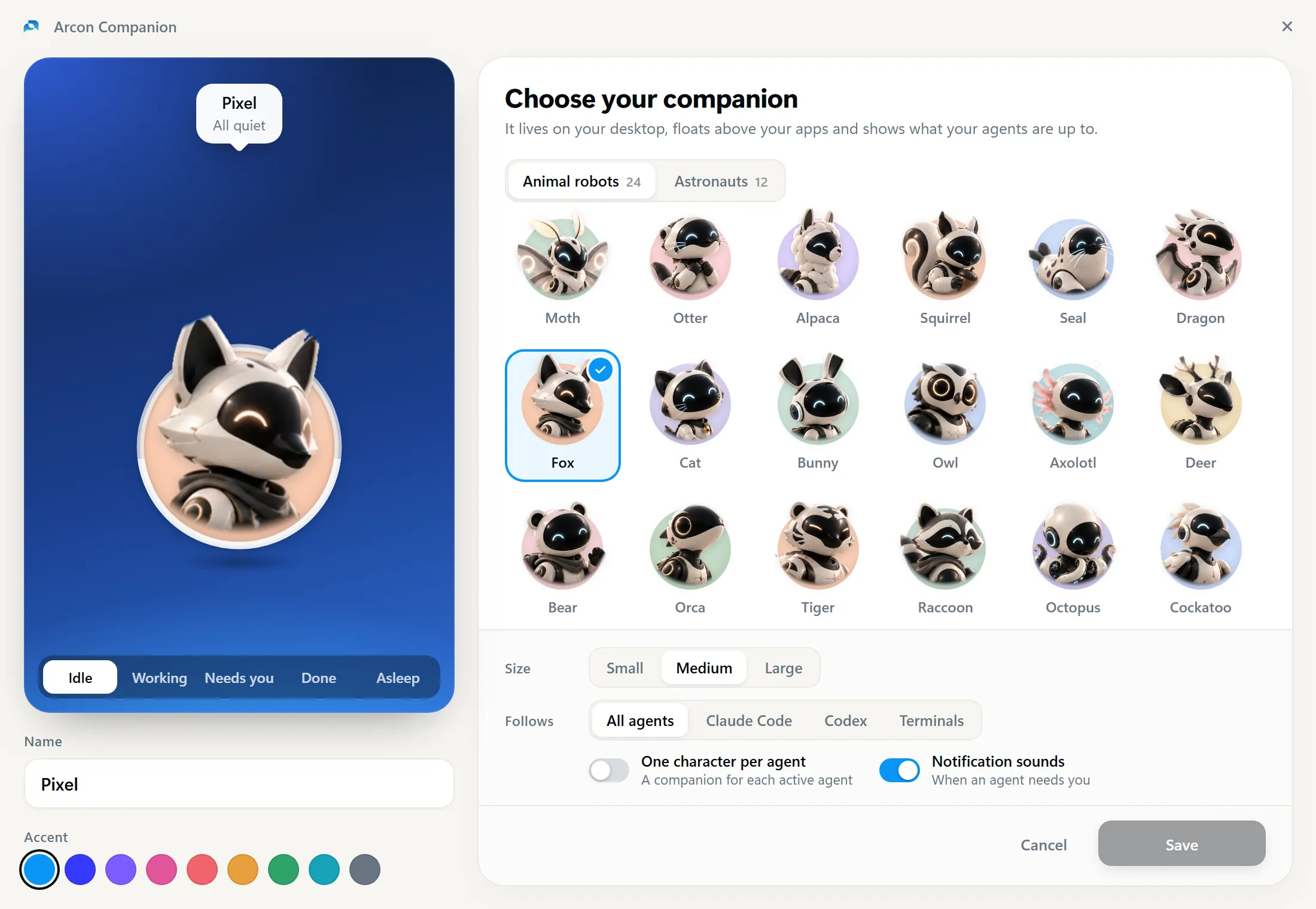
- Size: Small, Medium or Large. Follows: All agents, Claude Code, Codex or Terminals.
- Click the companion to open its panel (what’s running, Review, Open Arcon). Double-click opens Arcon. Drag it anywhere.
- When an agent hands work to sub-agents, they orbit the companion, each with its own picture and state.
- Change it later: Settings → Companion → Change character, or right-click it → Change character…
What the companion is telling you
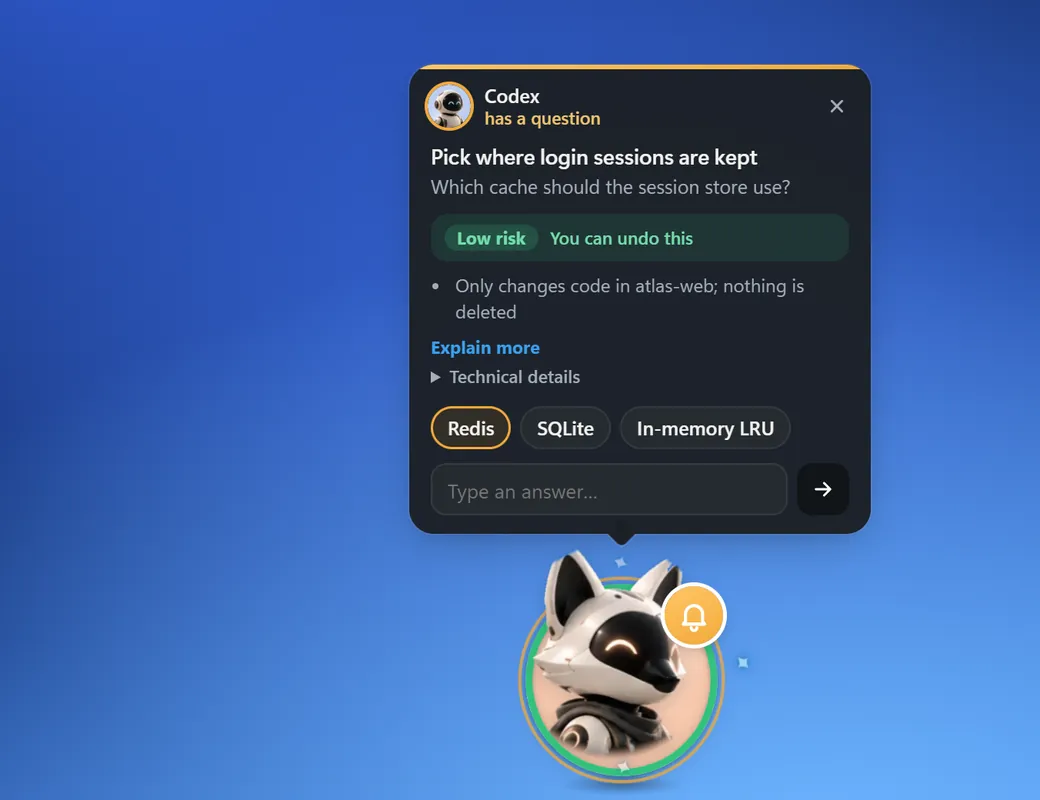
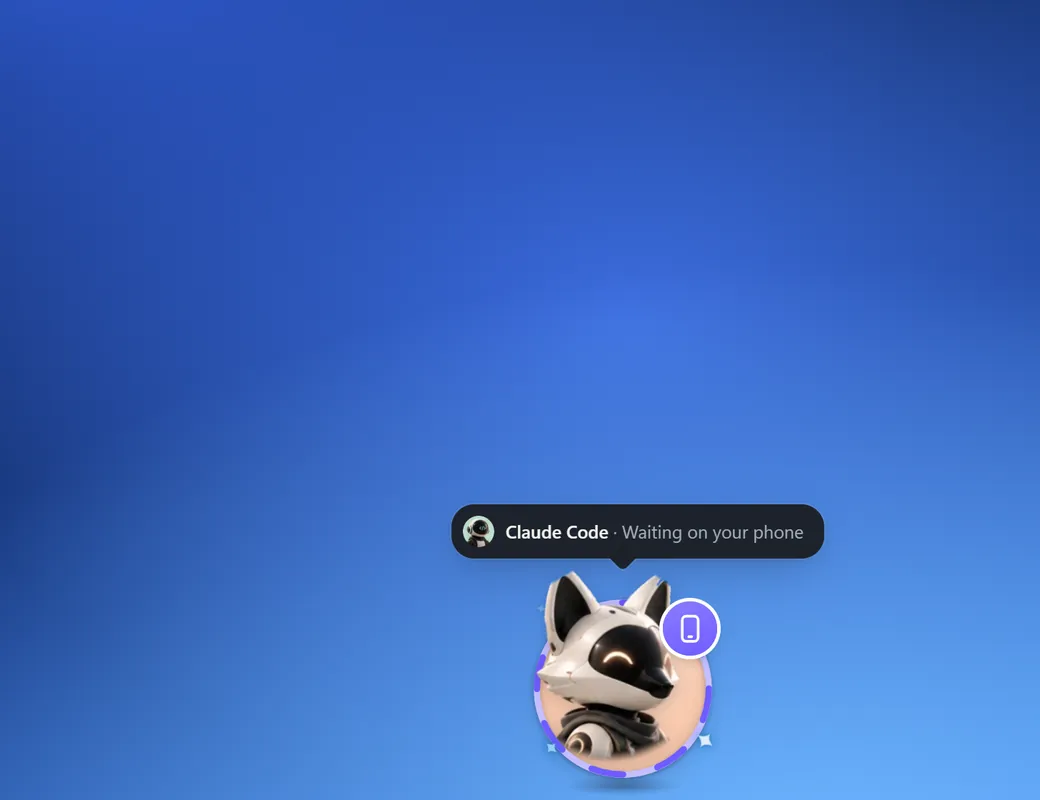
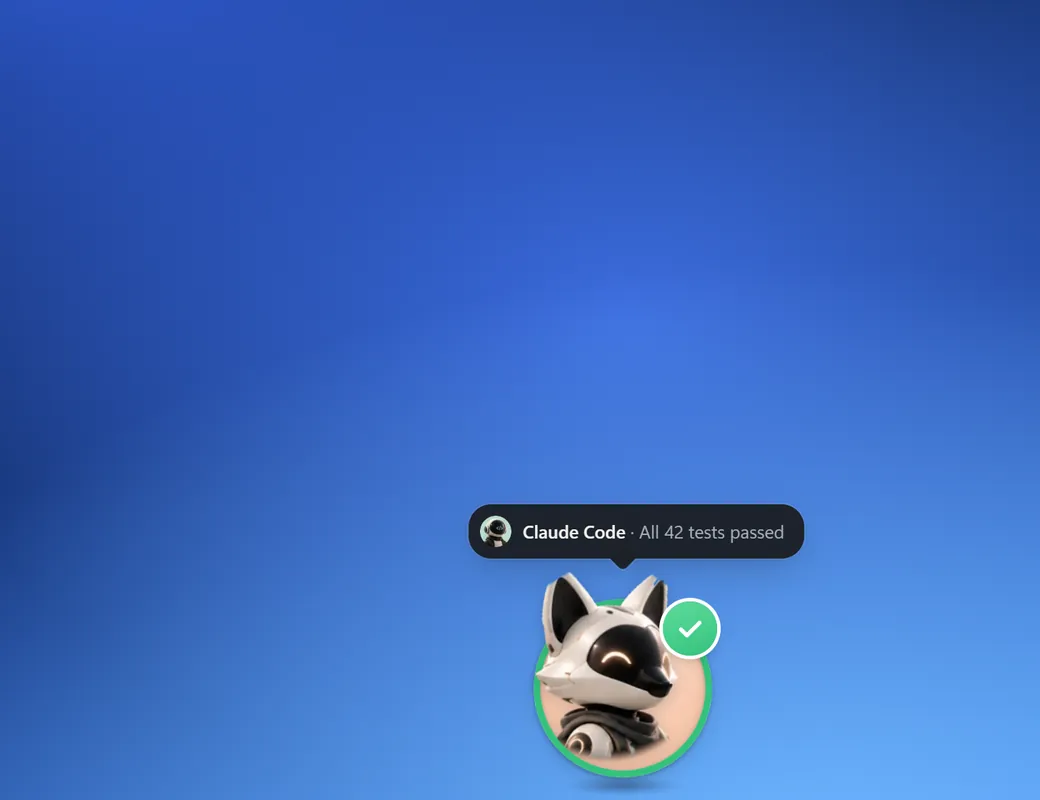
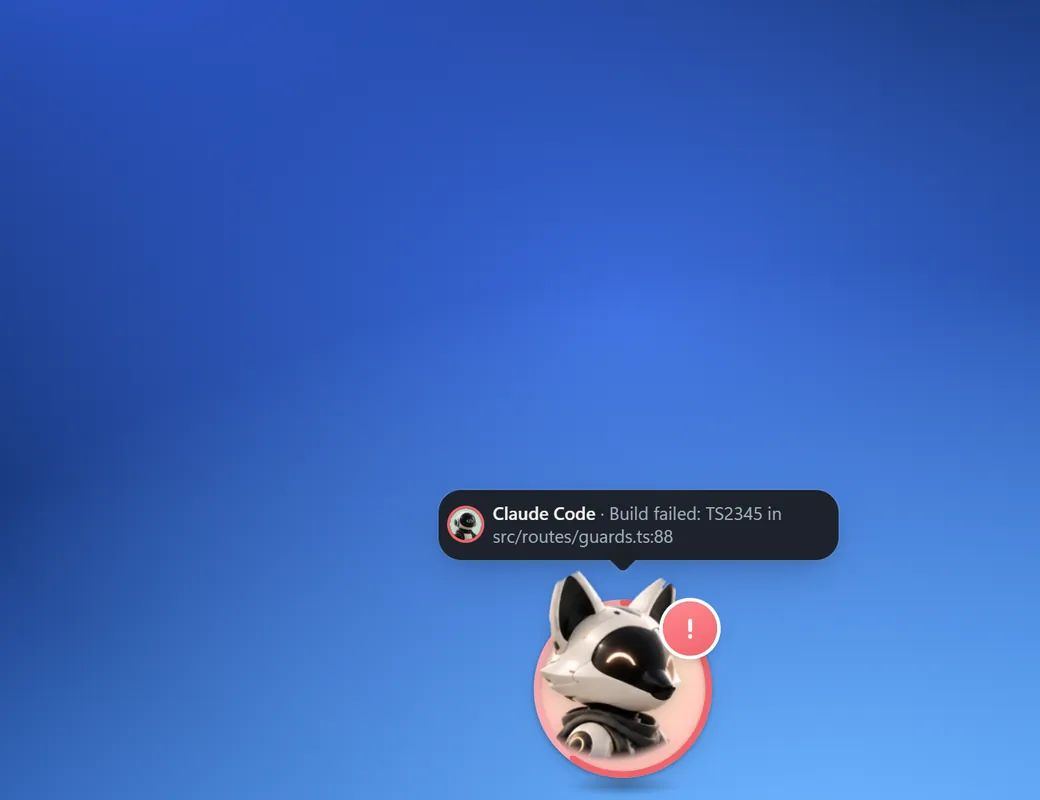

Hide or show the companion
Sometimes you want your screen to yourself. There are a few ways, from “just for now” to “never”:
| Where | What you can do |
|---|---|
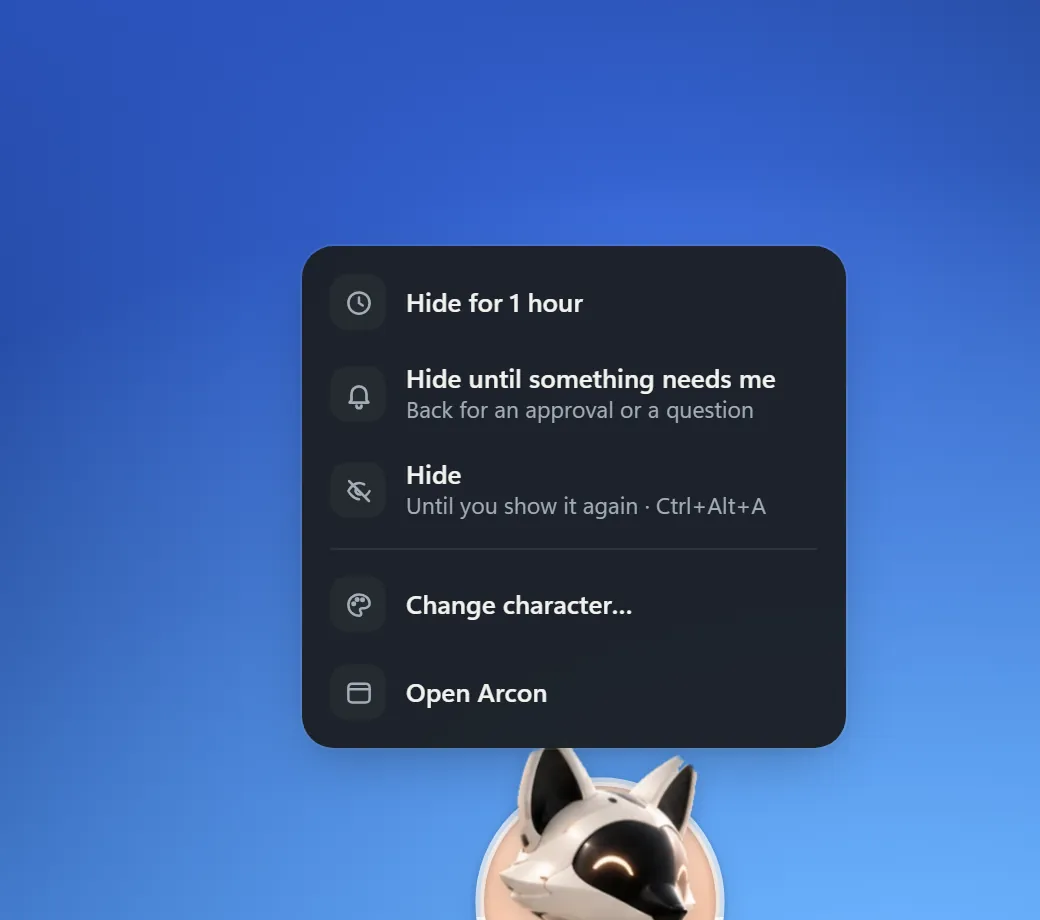
| Right-click the companion | Hide for 1 hour, Hide until something needs me (it comes back for an approval or a question), or Hide until you show it again. |
| Keyboard | Ctrl Alt A hides or shows it from any app. Change or turn off the shortcut in Settings. |
| Settings → Companion | Show companion on desktop on or off, and Visibility: Always, When needed (appears when an agent needs you or finishes, then fades away) or Never. |
| The tray icon | Hide companion / Show companion. |
One character per agent
Turn on One character per agent (Settings → Companion, or the tray) and every active agent gets its own companion, up to four at once. Each one uses the character you gave that agent (or its avatar), never the same character twice on screen, and leaves about 20 seconds after its agent goes quiet.
The tray icon
Arcon lives in the Windows tray (by the clock). Click it to open Arcon; right-click for the menu:
- Open Arcon, with the number of things that need you
- Hide companion / Show companion, Change character…, Size
- Do not disturb (no bubbles, sounds or notifications; needs-you still shows as a quiet ring) and One character per agent
- Start with Windows: Arcon starts quietly in the tray when you sign in to Windows
- Get help…, Open arcon.dev and Quit Arcon
Links that open Arcon
Links starting with arcon:// open the matching screen in the app, for example arcon://inbox or arcon://sessions.